Nine short videos that show how to download videos, photos, reels and stories with Media Saver, with every step written out.
They go in the order you are likely to need them: the first launch, saving from a link, picking a quality, stories, the built-in browser, downloads, your gallery, trending videos and the settings. Each runs for about a minute with captions on screen.
The site and posts in the videos are made-up examples, so no real person or post appears in them. The steps are the same on Instagram, Facebook, TikTok, X, Threads, Pinterest, Vimeo and IMDb.
Getting started
Your first minute with Media Saver.

- Open Media Saver. Tap its icon. The first time, Media Saver asks you to read a short disclaimer.
- Agree and continue. Tick the box and tap I Agree & Continue. On Android 13 and later, allow notifications to see download progress.
- Start with a link. This is Home. Paste a post's link into the box and tap Download to see every quality it comes in.
- Platforms and Premium. Tap a platform to open it inside the app. Go Premium below lists the plans for no ads and the highest quality.
- Read the guide. How to download? walks through every way to save, with steps for each platform. Tap back to return to Home.
- Explore the tabs. Trendings shows popular videos, Gallery keeps what you save, and Menu holds the settings. The Browser has its own tutorial.
- Open the drawer. Tap the menu icon for the drawer: guides, questions and answers, feedback, and the privacy and terms pages.
Download with a link
Copy a link, paste it, pick a quality.

- Find the post. Open the post you want to keep in its own app. Media Saver works with Instagram, Facebook, TikTok, X, Threads, Pinterest, Vimeo and IMDb.
- Copy its link. Tap Share, then Copy link. The link is now on your clipboard.
- Open Media Saver. Go back to your home screen and open Media Saver.
- Paste the link. Tap the paste button at the end of the link box. The link drops in.
- Tap Download. Media Saver reads the post and lists every quality it comes in.
- Pick a quality. Tap the quality you want. The download starts at once, and a count appears on the arrow at the top.
- Watch it arrive. Tap the arrow to see it come in. A big file comes down in four parts at once.
- Share straight to Media Saver. In the post's app, tap Share, then Share to… and choose Media Saver. It opens right on the quality list.
Choose quality and format
From 4K to data saver, video, audio or photos.
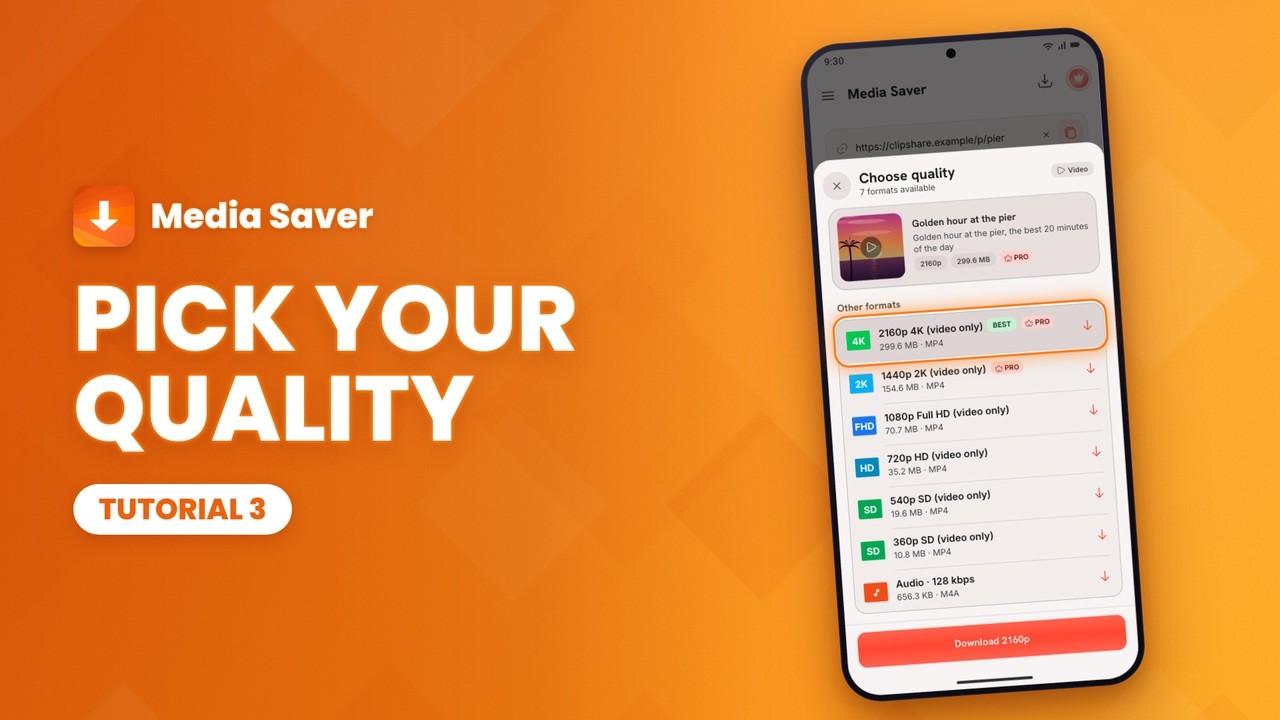
- Tap Download. With a link pasted, tap Download. The sheet says Extracting media…, then lists every quality.
- Best quality first. BEST marks the top quality, and the button at the bottom saves it. PRO marks 2K and up, a Premium feature.
- Smaller files. Lower qualities save space and data. Each row shows its size, so a 360p copy can be a third the size of 720p.
- Just the sound. Audio · 128 kbps saves the soundtrack alone, as an M4A file. Tap it and the download starts.
- Open a photo post. Paste a link to a post with several photos, then tap Download. Each photo gets its own card.
- Pick the photos. Tap a photo to select it, tap again to deselect. The header keeps count of how many you have picked.
- One photo's qualities. The formats line on a card opens that photo's own quality list. The back arrow returns to the grid.
- Save them all. Tap Select all, then Download. The sheet closes and Download started appears below.
Save stories and highlights
Sign in once, then save from the people you follow.

- Open Instagram. On Home, tap Instagram under Social platforms. The first time, its stories page asks you to log in.
- Log in once. Tap Log In to Instagram and sign in on its own page. Media Saver keeps you signed in after that.
- Find someone. Type a name in Search users, then tap the person. Their page opens with their current stories.
- Highlights and Timeline. Tap a highlight to see what is saved in it, and Stories to come back. Timeline shows their posts.
- Save one. Tap Download on any story. It starts saving right away, and a note says Download started.
- Save several. Press and hold a story to start selecting, tap two more, then tap Download 3 items.
- Watch first. Tap a story to watch it full screen. The dots show which one you are on. Tap Save to Gallery to keep it.
The built-in browser
Find and save videos on almost any site.

- Open the Browser. Tap Browser at the bottom of the screen, then tap the address bar to go somewhere new.
- Go to a page. Clear the box, type the page's address and tap Go. The page opens in the browser.
- Play the video. Start the video. Once the page loads it, a badge beside the address bar counts the videos found.
- Tap the badge. It lists every video the page loaded, with its format, resolution and length.
- Save it. Tap the download button, check the name and tap Download. A streamed video is saved as one MP4.
- Switch tabs. Tap the square with the number to see your open tabs. Tap one to go back to it.
- Find your history. Open the menu and tap Search History. Tap a page to open it again.
- Browse privately. Open the menu and tap New incognito tab. The bar turns dark, and private pages stay out of your history.
Pause, resume and go faster
Every download in one place.

- Open Downloads. Tap the arrow at the top of Home. Its badge counts the downloads still running.
- Watch it download. Each download shows how far it has got, how much has arrived and how fast it is coming in.
- Pause and resume. Tap Pause to stop a download for now. Tap Resume to get it going again.
- Big files go faster. Fast Download Mode is on by default. A file over 15 MB comes down in four parts at once, and the chip shows 4x.
- Filter the list. Tap the filter icon and choose All, In progress or Completed to see just those downloads.
- See a file's details. Tap the three dots on a finished file to open, share, rename or delete it. File Info shows its size, folder and type.
- Follow it from anywhere. Downloads keep going when you leave the app. Pull down the shade to pause or cancel one, and to see it finish.
Your gallery
Watch, like, repost and share what you saved.
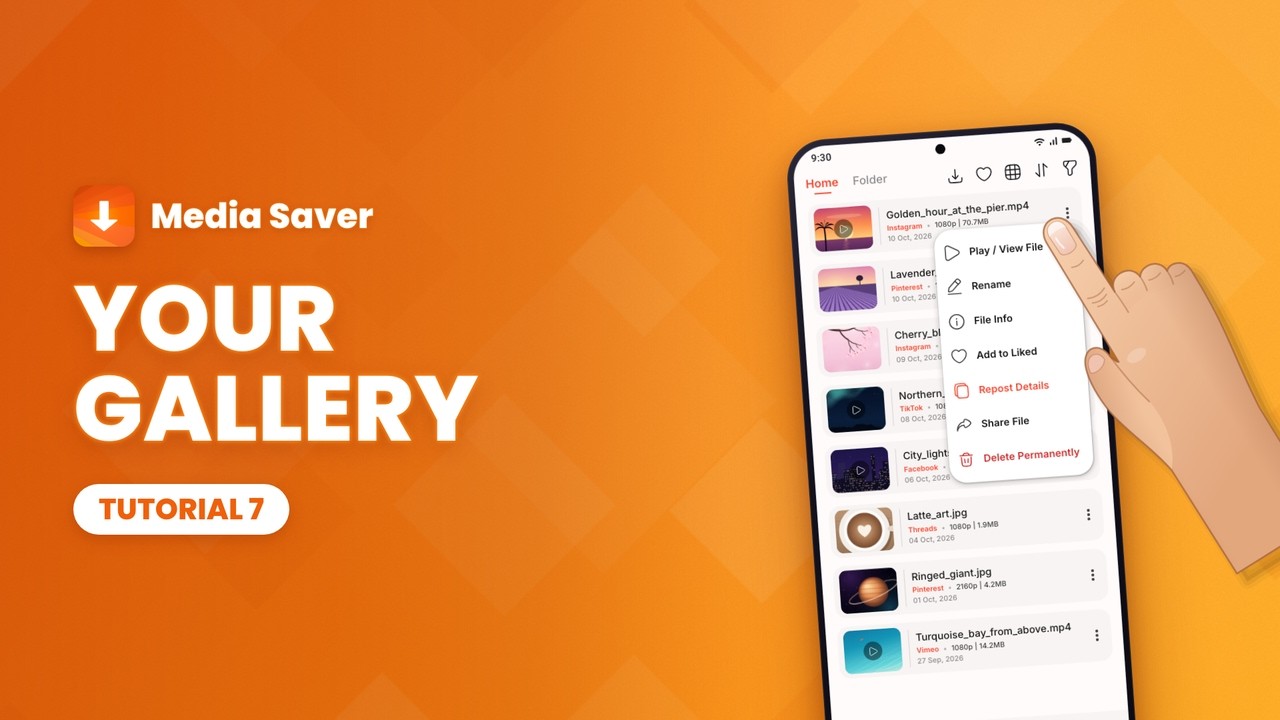
- Open your gallery. Tap Gallery at the bottom. Everything you have saved is here, newest first.
- Play a video. Tap a video to play it. Drag the bar to jump ahead, then tap the arrow to go back.
- Swipe through photos. Tap a photo to open it. Swipe for the next one, and tap × to close.
- Like a file. Tap the three dots, then Add to Liked. The heart at the top shows only your liked files; tap it again to see them all.
- Repost with the caption. Tap the three dots, then Repost Details to see the post's caption and hashtags. Copy Caption copies them for your post.
- Share or delete. Share File opens Android's share sheet. Delete Permanently removes the file from your phone once you confirm.
- Browse by source. Tap Folder to see your files grouped by where you saved them from. Home lists them all again.
- Sort the list. Tap the sort icon and pick an order: newest, oldest, by name or largest first.
Trending videos
See what is popular today and save it.

- Open Trendings. Tap Trendings in the bottom bar. The number on it counts the videos you have not watched yet.
- Pick a topic. Tap the settings icon, choose a topic and tap Apply. The feed then shows only that topic.
- Watch full screen. Tap a video to play it full screen. Swipe up for the next one.
- Save to Gallery. Tap Save to Gallery and pick a quality. The download starts and keeps going while you watch.
- Tap the heart. It adds the video to your favorites. Tap it again to take it out.
- Close the player. Tap the X. The count on the arrow at the top shows your video is still saving.
- Open Favorites. The videos you hearted are kept here, newest first.
- Copy a link. Tap the three dots on a video, then Link under Copy. The link is ready to paste anywhere.
Make it yours
Download folder, formats, language and more.

- Open the Menu tab. Tap Menu at the bottom right. All of the app's settings are on this one page.
- Keep Fast Download on. Fast Download Mode is on by default. It fetches each file in several parts at once, so it finishes sooner.
- Catch copied links. Turn on Auto-Clipboard. Copy a link anywhere, come back to Media Saver, and it pastes the link and fetches its formats.
- Choose a download folder. Tap Download Folder and pick a folder on your phone. New downloads are saved there from then on.
- Pick which formats show. Tap Extraction Mode. All Formats lists every format; Optimal keeps one of each resolution: 4K, 2K, 1080p and so on.
- Change the language. Scroll down and tap App Language. Pick one of 17 languages and the app restarts in it.
- See what Premium adds. Tap the crown. Premium removes ads, uncaps download speed and unlocks HD, 2K and 4K.
Where to copy the link, platform by platform
Pasting a link works the same everywhere; only the place you find Copy link changes.
Instagram: posts, reels, IGTV and stories
- Open the Instagram post, reel or video.
- Tap the share button (the paper-plane icon), then Copy link.
- Paste the link into Media Saver and tap Download.
Stories are the exception: they need you signed in, from the Instagram page in Media Saver (tutorial 4).
Facebook: posts, reels, Watch and stories
- Open the Facebook post or video.
- Tap the three-dot menu or Share, then Copy link.
- Paste the link into Media Saver and tap Download.
Private posts need you signed in to Facebook inside Media Saver first.
TikTok
- Open the TikTok video.
- Tap the share icon, then Copy link.
- Paste the link into Media Saver and tap Download.
X (Twitter): posts with video or images
- Open the post with the media you want.
- Tap the share icon, then Copy link to post.
- Paste the link into Media Saver and tap Download.
Threads: posts and carousels
- Open the thread you want to save.
- Tap the share icon, then Copy link.
- Paste the link into Media Saver and tap Download.
Pinterest: image and video pins
- Open the pin you want to save.
- Tap the share icon, then Copy link. Short
pin.it/…links work too. - Paste the link into Media Saver and tap Download.
IMDb: trailers and clips
- Open the IMDb trailer or video page.
- Tap the share icon, then Copy link.
- Paste the link into Media Saver and tap Download.
The first IMDb link can take around ten seconds while a browser check clears. That is normal and only happens once.
Vimeo: public videos
- Open the Vimeo video.
- Copy the link from the share menu or the address bar.
- Paste the link into Media Saver and tap Download.
Please download responsibly
Everything you save is for your own offline use. The media still belongs to whoever published it, so save only what you own or have permission to download, and respect each site's terms. Media Saver is not affiliated with any of the platforms it supports.
Still stuck?
The questions on the product page cover what people ask most, from where downloads are saved to what Premium adds. Or write to us with the form on the product page and tell us which link and which device you were using.