Eleven short videos that show how to download Facebook videos, Reels and Stories in HD and 4K with Fb Video Downloader, with every step written out.
They go in the order they build on each other: signing in once, downloading while you browse, picking a quality, Reels and Watch, stories, the Easy Downloader button, pasting a link, trending videos, your gallery, downloads and Pro. Each runs for about a minute with captions on screen.
The site and posts in the videos are made-up examples, so no real person or post appears in them. In the app, the built-in browser opens Facebook itself.
Getting started
Find your way around, then sign in once.
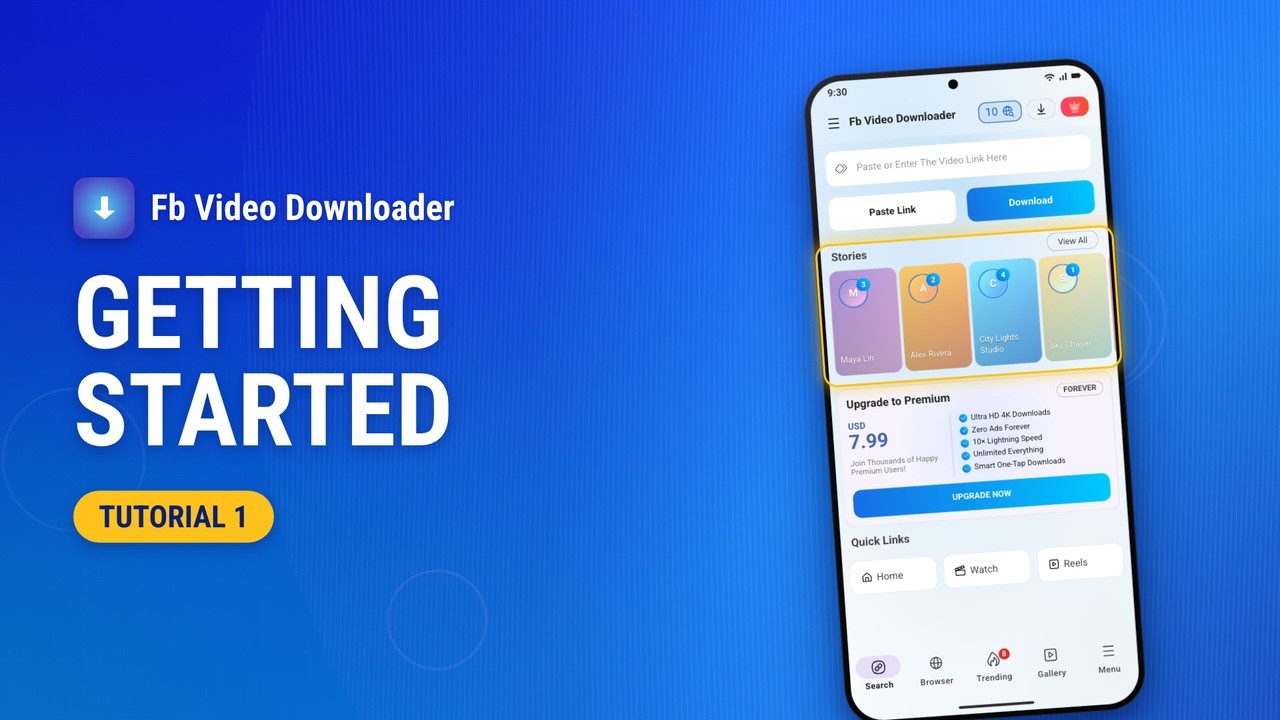
- Open the app. Tap its icon on the home screen. The app opens on the Search tab and asks to send you notifications.
- Allow notifications. On Android 13 and later, tap Allow. Downloads then show their progress and completion in a notification.
- Start in Search. Paste a post's link here and the app lists every quality it comes in. Stories show up below once you sign in.
- Look around the tabs. Trending lists popular videos, Gallery keeps everything you download, and Menu holds the settings and Pro.
- Sign in once. The Browser tab opens Facebook's sign-in page. Signing in is only for private posts and stories; public videos download without it.
- Log in. Enter your email and password and tap Log in. The app remembers the sign-in, so you only do this once.
- Load your stories. Back on the Search tab, tap Try Again. Stories from the people you follow now load, ready to save.
Download while browsing
A download button on every video and photo.
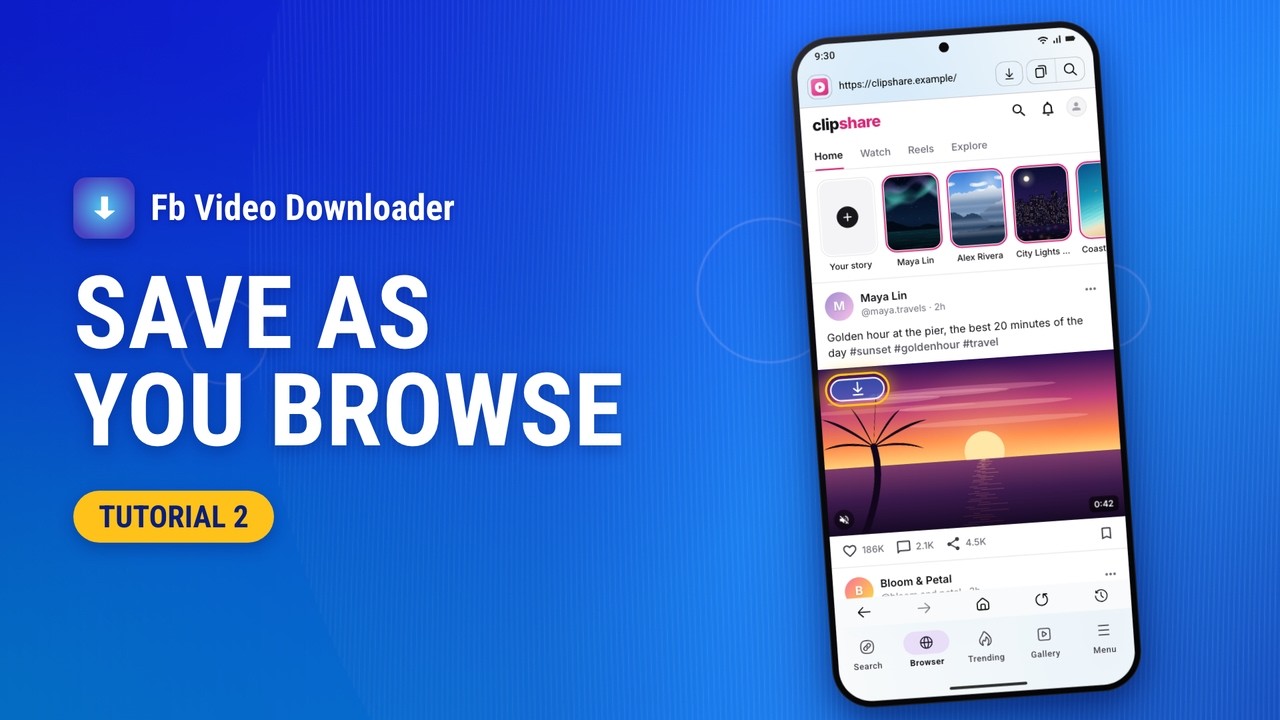
- Open the Browser. Tap Browser at the bottom of the screen. It opens on Watch, and every video there has a blue download button.
- Go to your feed. Tap the home button under the page to open your feed. Each video there gets the same button.
- Tap the download button. Tap the blue button on a video. The app looks up every quality the video comes in.
- Pick a quality. Tap the download button beside 1080p. The download starts, and the number at the top counts it.
- Tap a photo's button. Scroll to a photo and tap its download button. A preview of the photo opens.
- Download the photo. Tap Download to save it. The number at the top counts it while it saves.
- Follow your downloads. The number shows what is still saving. Tap the button to see each download and how far along it is.
Choose quality up to 4K
Pick HD, Full HD, 4K or just the sound.
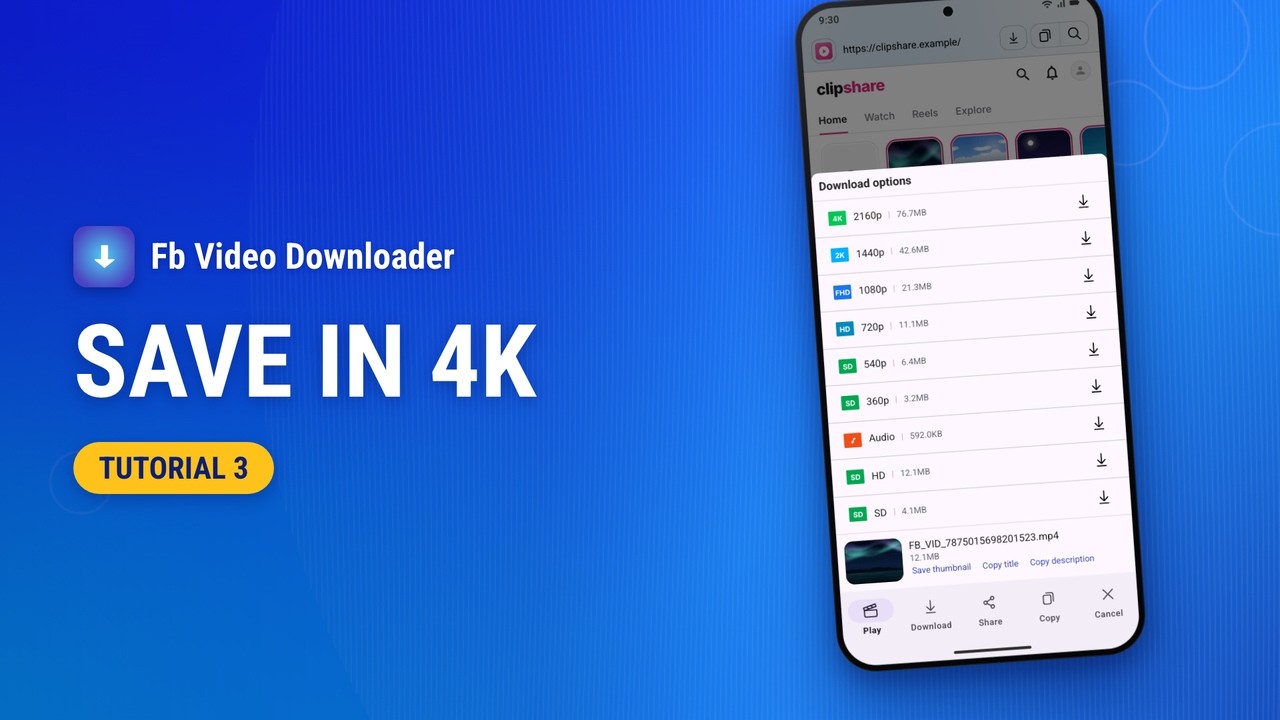
- Tap the download button. Tap the download button on a video. The app lists its qualities, then looks for more, up to 2K and 4K.
- Every quality has a badge. Each row has a badge (4K, 2K, FHD, HD or SD) and its file size. Audio is the sound on its own.
- 2K and 4K are Pro. On the free plan, the 2K and 4K rows have an orange button. Pro unlocks them.
- Save the thumbnail. Tap Save thumbnail to save the video's picture. A message tells you when it is saved.
- Copy the title. Tap Copy title to put the post's title on the clipboard. Copy description does the same for its caption.
- Just the sound. Tap the download button on Audio to save only the sound. The sheet closes and the download starts.
- Download in 4K. With Pro, 2K and 4K download like any other quality. Tap 2160p to save the video in 4K.
- Follow it in the shade. Pull down the shade. The app downloads the video, then the audio, merges them, and shows Download complete with a picture.
Reels, Watch and comments
Save videos wherever they play.
- Open Watch. Tap Watch at the top of the page. Every video in the list has the blue download button.
- Save the video. Tap the download button on the video, then the button beside a quality. The download starts right away.
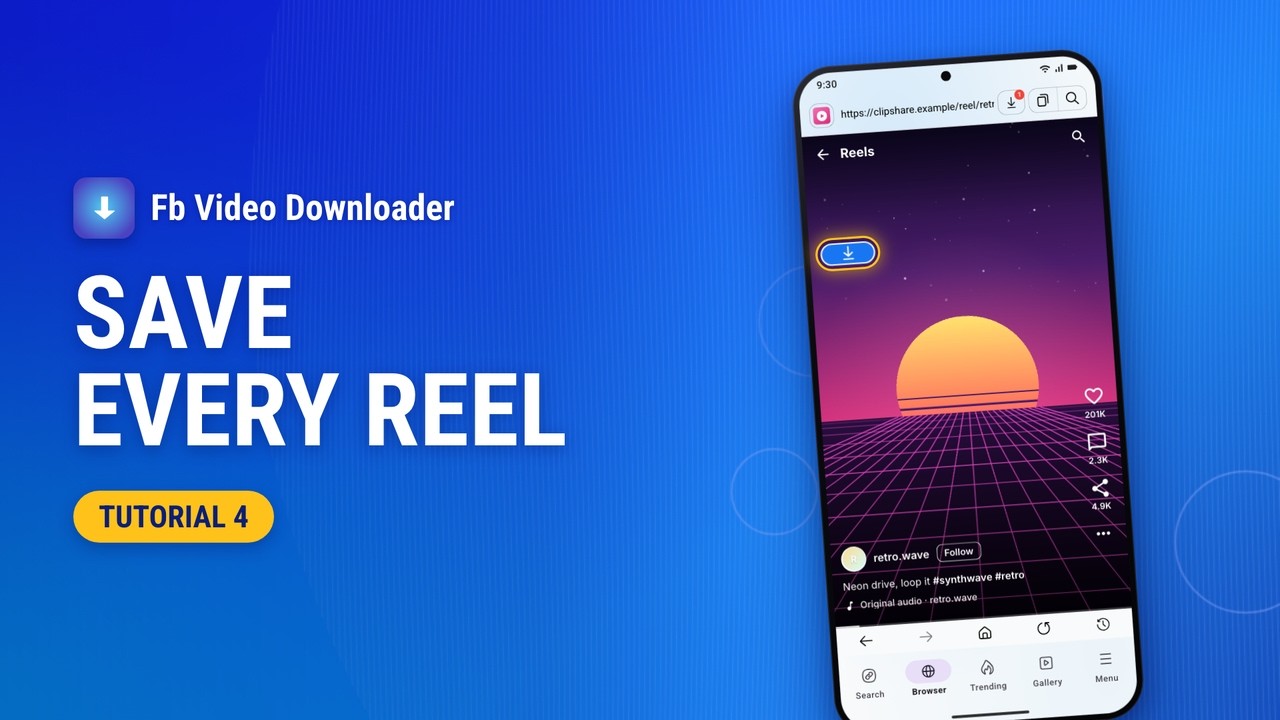
- Open Reels. Tap Reels at the top of the page. Each reel plays full screen with its own download button.
- Swipe to the next reel. Swipe up to move to the next reel. Its download button comes with it.
- Save the reel. Tap the download button on the reel and pick a quality. A reel saves like any other video.
- Open the comments. Tap the home button for your feed, then the comments under a post. Videos shared in comments get the button too.
- Save the comment's video. Tap the download button on the video in the comment, then pick a quality.
Download HD stories
Save stories from the people you follow.
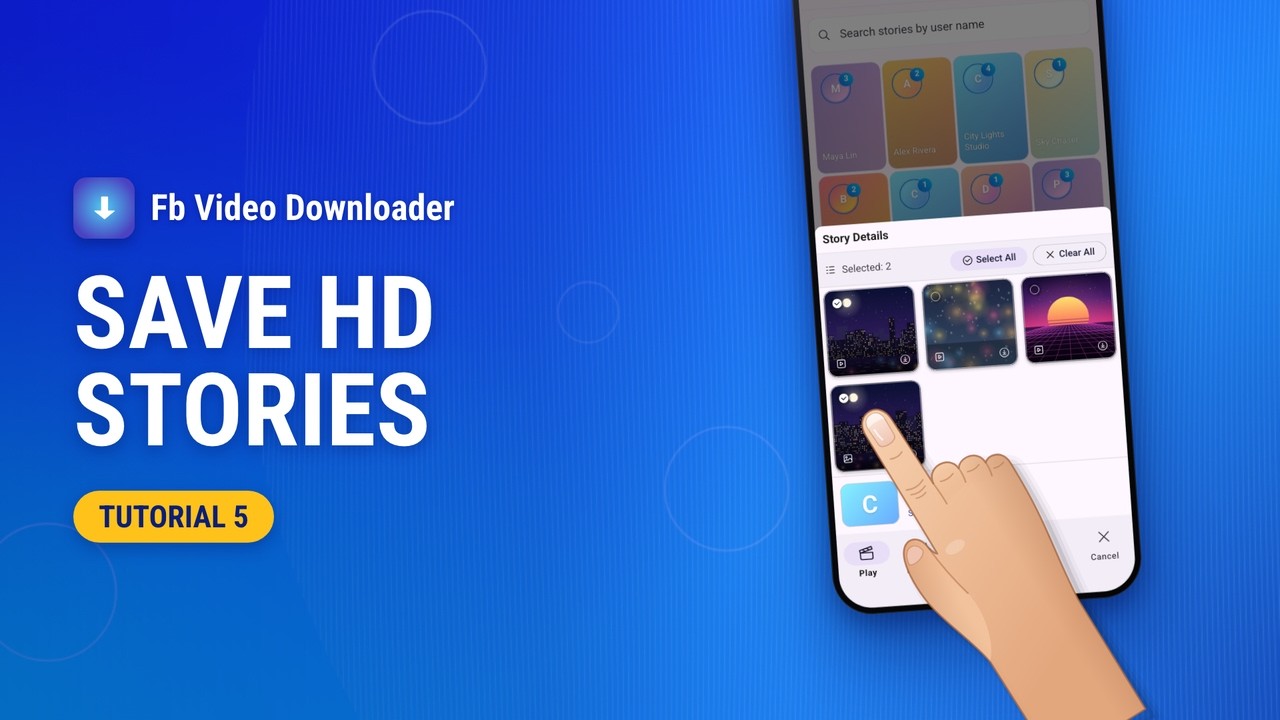
- Open Stories. Stories need you signed in through the app's browser. Then, on the Search tab, tap View All beside Stories.
- Pick a person. Everyone with a story up is here, with how many they have. Tap a person to load their stories.
- Tick and download. Tap stories to tick them, then tap Download at the bottom. The sheet closes and each one starts saving.
- Choose a quality. For one story, tap its download button instead. Download options lists its qualities; tap one, such as 1080p.
- Select several people. With Pro, press and hold a person, then tap others to pick up to 15 at once. Free accounts can pick 3.
- Download them all. Tap Download, then Download again to confirm. Every story from those people saves in the background.
- Follow it in the shade. Pull down the notification shade to see whose stories are saving, one person at a time. Cancel stops it.
Easy Downloader
A floating button that saves links from any app.

- Switch on Easy Downloader. Tap the Easy Downloader button at the top of the Search tab. On its screen, switch on Enable Easy Downloader.
- Turn on the floating button. Switch on Floating Download Button Settings. It comes with Pro; free users can unlock it for an hour by watching an ad.
- Allow display over other apps. The first time, Android needs your permission. Tap Settings, choose the app, switch on Allow display over other apps and go back.
- Leave the app. Go to your home screen and open the app with the video. The floating button stays on top of it.
- Copy the video's link. On the video's post, tap Share, then Copy link. Android confirms that the link is copied.
- Tap the floating button. It asks before it reads your clipboard: tap Paste, and it looks up the video.
- Pick a quality. The quality list opens over the app you are in. Tap a quality: the download starts and the button comes back.
- Move it or put it away. Drag the button anywhere; let go and it slides to the nearer side. Drop it on the X to hide it until you next leave the app.
Search and paste a link
Paste a copied link, or type words to search Facebook.
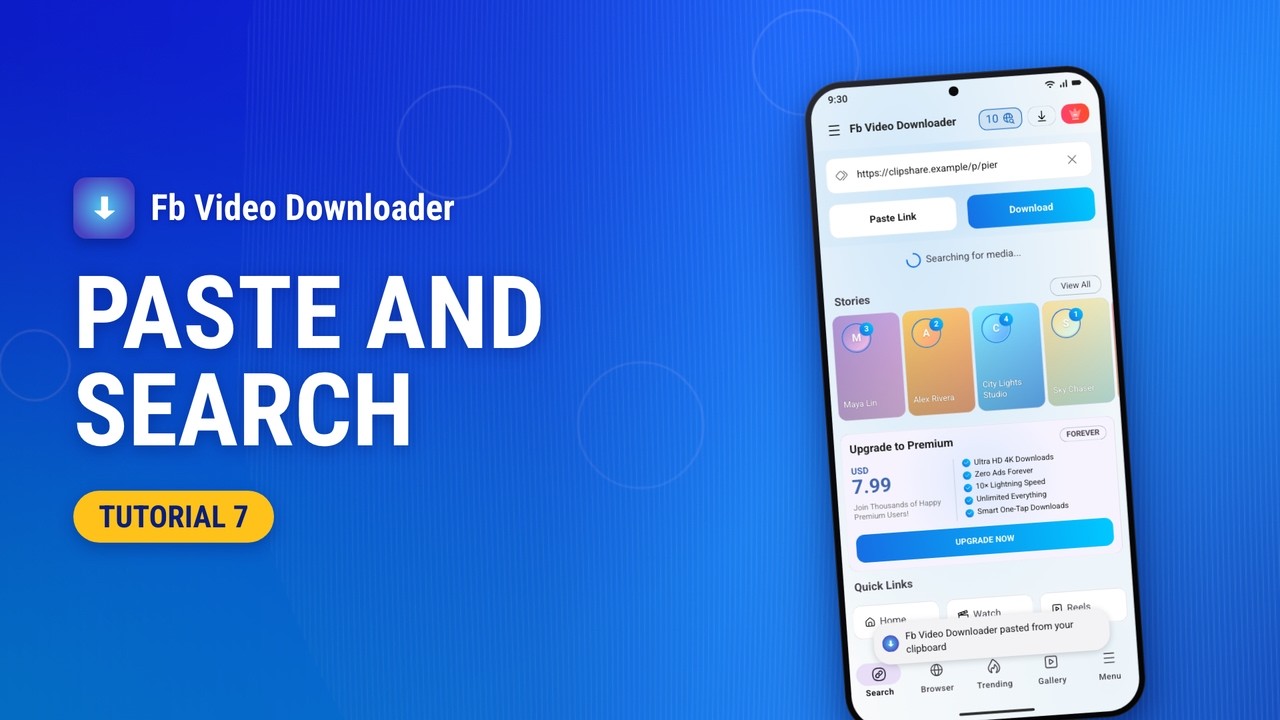
- Copy the link. In the app where you saw the video, tap Share, then Copy link. The link is now on your clipboard.
- Open the app. Go back to your home screen and open Fb Video Downloader. It starts on the Search tab, with the link box at the top.
- Tap Paste Link. The link drops into the box and the search starts right away, so there is no need to tap Download.
- Pick a quality. The list shows every quality the video comes in. Tap the download button beside one to start saving it.
- Your free searches. The number at the top counts your free advanced searches, which find the extra qualities. Each link you look up uses one.
- Type a name instead. To find a person or a topic, clear the box, tap it and type a few words.
- Search. Tap Go on the keyboard. The Browser tab opens the search results for your words.
Trending right now
Popular videos to watch, save and keep.

- Open Trending. Tap Trending in the bottom bar. The red number shows how many new videos are waiting.
- Play a video. Tap a video in the list. It plays full screen, with its title and description at the bottom.
- Swipe for the next. Swipe up to play the next video. Swipe down to go back to the one before.
- Tap download. Tap the video to show the buttons, then the download arrow. The app finds the video and lists its qualities.
- Pick a quality. Tap the download button beside a quality. The download starts, and the video plays on.
- Back to the list. Tap the video, then the back arrow. Videos you have watched leave the list, and the number on Trending goes down.
- Add a favorite. Tap the three dots on a video, then Add Favorite. The app confirms with Added to favorites.
- See history and favorites. Watch History lists the videos you played, newest first. Favorites keeps the ones you added.
Gallery and player
Watch, share and manage what you saved.
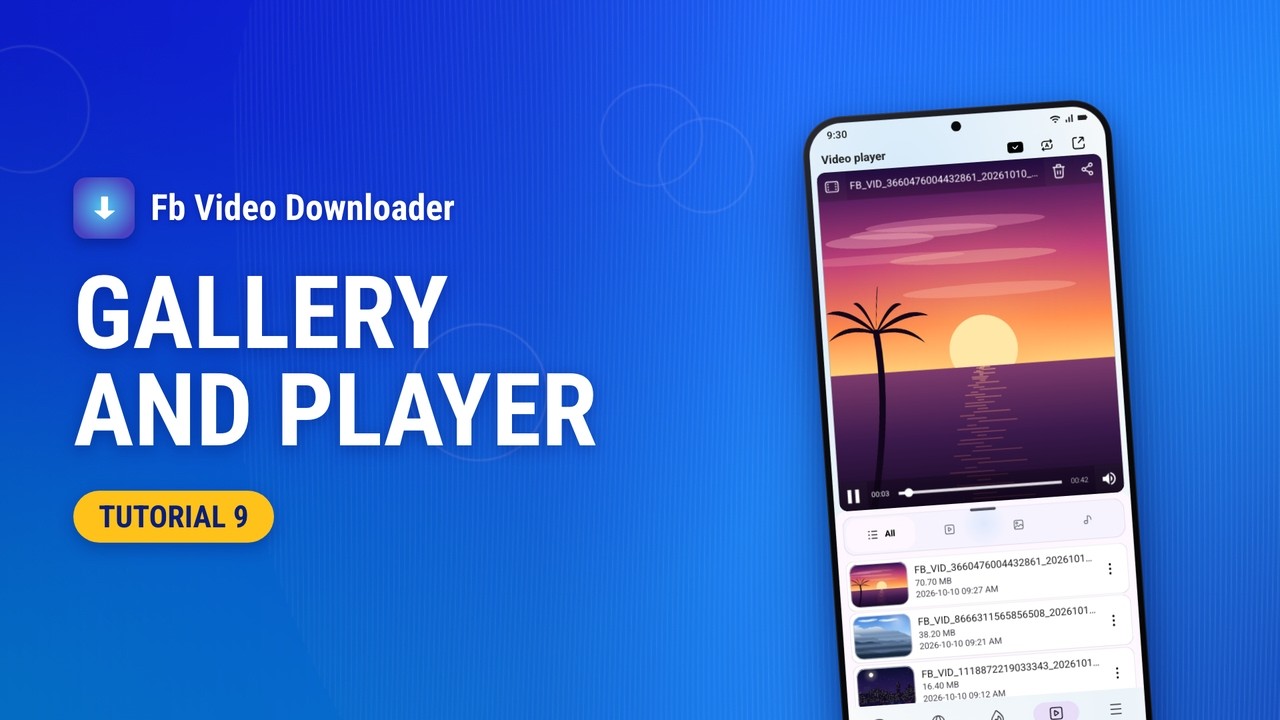
- Play a saved file. Tap Gallery, then tap a file. The list slides down and the video plays in the player above it.
- Swipe for the next. Swipe up on the player for the next file. Swipe down to go back to the one before.
- Repeat and resize. Repeat switches between all files, this video and off. Resize fits the whole picture in or fills the player.
- Watch full screen. Tap the open button for full screen. Swipe there for the next file, and tap back to return.
- Rename a file. Tap ⋮ beside a file, then Rename. Type a new name and tap Save.
- Select and delete. Touch and hold a file to start selecting, tap more files, then the bin. Android asks before it deletes them.
- Filter by type. The tabs above the list show only videos, images or audio. All shows everything again.
- Extract audio or share. In the same ⋮ sheet, Extract audio saves the sound as an MP3, and Share sends the file to another app.
Downloads
Follow, pause and resume every download.

- Start a download. Tap Paste Link, then the download button beside a quality. The download starts straight away.
- Open Downloads. The badge on the downloads button counts the downloads running. Tap the button to open Downloads.
- Follow its progress. Each row shows how far it has got, how much has arrived, the speed and the time left.
- Pause and resume. Tap pause to stop a download. Tap play to resume it: it waits a moment, then carries on.
- Merged and saved. A 1080p video comes in two parts, the picture and then the sound. The app merges them and saves the file.
- More for each download. Tap ⋮ to copy the caption, with or without credit, open the post, share the file or remove it.
- See it in the shade. Back in the app, the badge has gone. Pull down the shade to find the finished download, with a picture of it.
Menu and Pro
Settings, language and Pro features.

- Open the Menu tab. Tap Menu at the bottom. Your settings, the help pages and the Pro offer are all on this page.
- Turn on Auto Download. Tap Auto Download and allow clipboard access. Copy a link, come back to the app, and it looks the link up by itself.
- Pick your language. Tap Language to choose from 19 languages. The app restarts in the one you pick.
- Choose a theme. Tap Theme to pick Light, Dark or System Default. System Default follows your phone's setting.
- Open the drawer. On the Search tab, tap the menu button at the top left. The drawer lists the same pages under an UPGRADE NOW card.
- See the Pro plans. Tap UPGRADE NOW. Monthly and Yearly renew until you cancel them; Lifetime is a single payment.
- Buy it in Google Play. Tap a plan and the buy button, then pay in Google Play. A message confirms the purchase and the sheet closes.
- What Pro changes. The drawer's card now says You're Now Premium, and 2K, 4K, the floating button and batch story downloads are yours.
Please download responsibly
Saved videos are for your own offline viewing. They still belong to whoever made them, so save only what you own or have permission to download, and respect Facebook's terms. Fb Video Downloader is not affiliated with, endorsed by or authorised by Facebook or Meta.
Still stuck?
The questions on the product page cover what people ask most, from private videos to where downloads are saved. If Fb Video Downloader is not on Google Play where you live, HD Video Downloader is the same app, with the same tutorials. Or write to us with the form on the product page.