Mobile · Downloaders
Media Saver: Video Download
Download & save HD videos, photos, reels & stories from all your favorite apps
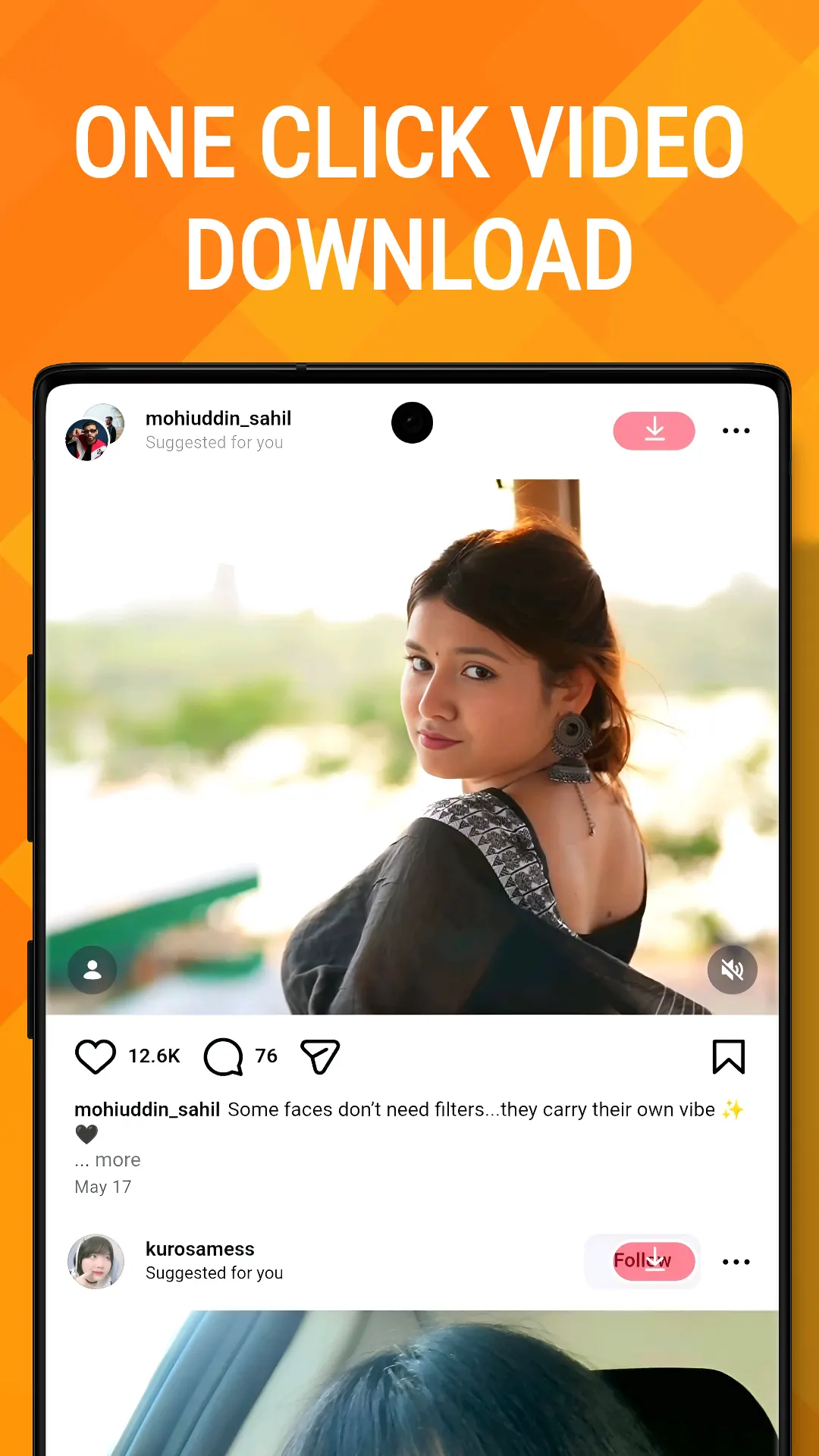
An all-in-one video downloader for Android. Paste a link from Instagram, Facebook, TikTok, X, Threads, Pinterest, Vimeo or IMDb, pick a quality up to 4K, and save videos, photos, reels and stories to your gallery.
5,000+
Downloads
Highlights
What Media Saver: Video Download does
Every quality up to 4K, or just the sound
Stories, highlights and posts from people you follow
A built-in browser that finds the videos on a page
Fast Download: big files in four parts at once
A gallery with a player and the caption to repost
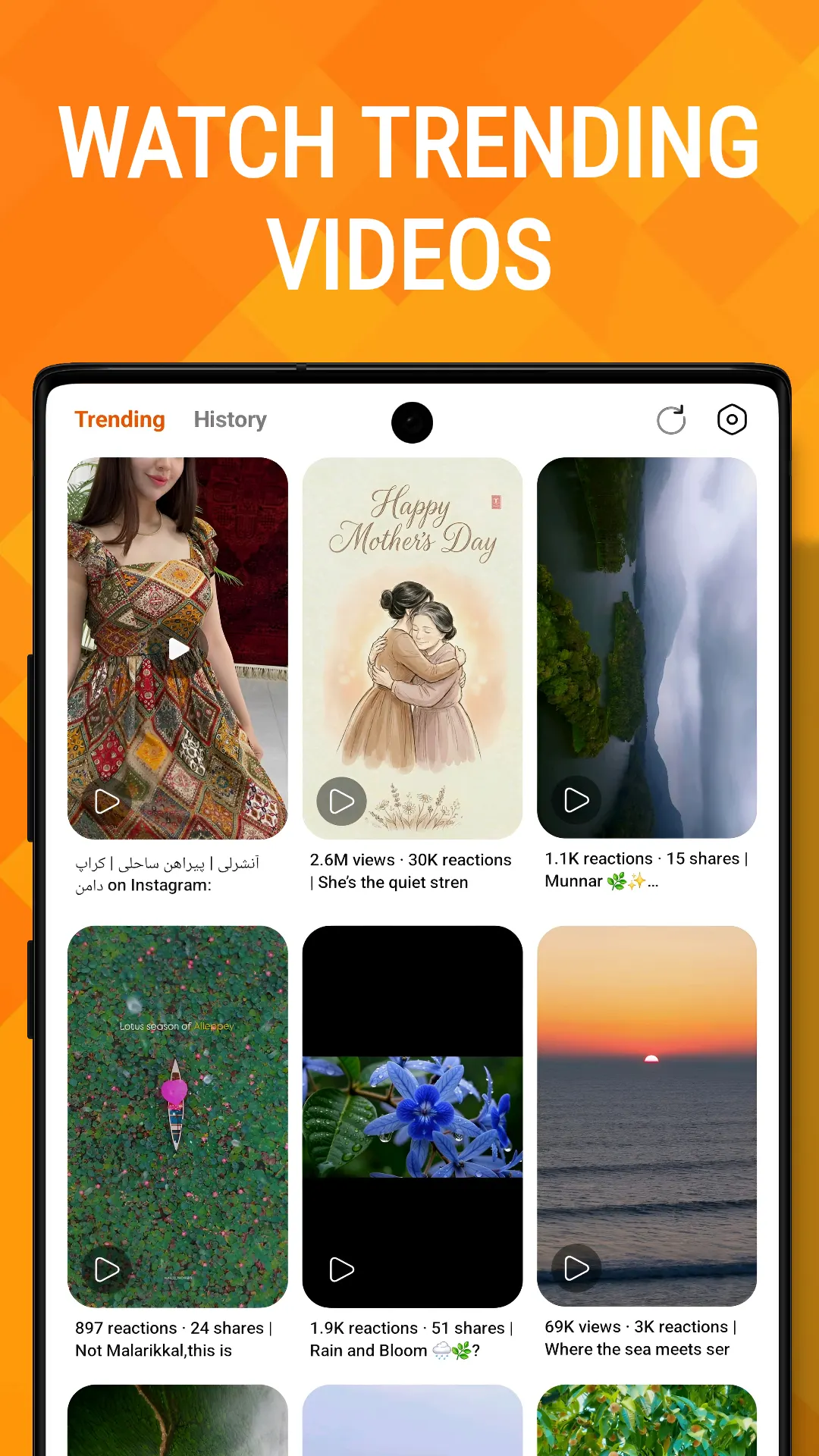
Trending videos to watch and save
Available in 17 languages
How it works
How to download videos with Media Saver
-
Copy the link
In Instagram, TikTok, Facebook, X or another supported app, tap Share, then Copy link. Or share the post straight to Media Saver.
-
Paste it and tap Download
Open Media Saver, tap the paste button in the link box on Home, then Download. With Auto-Clipboard on, Media Saver does both as soon as you come back.
-
Pick a quality
The sheet lists every quality the post comes in, from 4K down to a data saver, each with its size, and the sound on its own. For a post with several photos, pick the ones you want.
-
Sign in for stories
For stories and highlights, open the platform from Home and sign in once on its own page. Media Saver keeps you signed in.
-
Find it in your gallery
Downloads run in the background, big files in four parts at once, and land in the Gallery tab and your phone’s gallery, ready to play, share or repost.
About
What is Media Saver?
Media Saver is a free all-in-one video downloader for Android. Paste a link from Instagram, Facebook, TikTok, X (Twitter), Threads, Pinterest, Vimeo or IMDb, pick a quality, and the video, photo, reel or story is saved to your gallery in HD, up to 4K where the source has it. For any other site, its built-in browser finds the videos on the page for you.
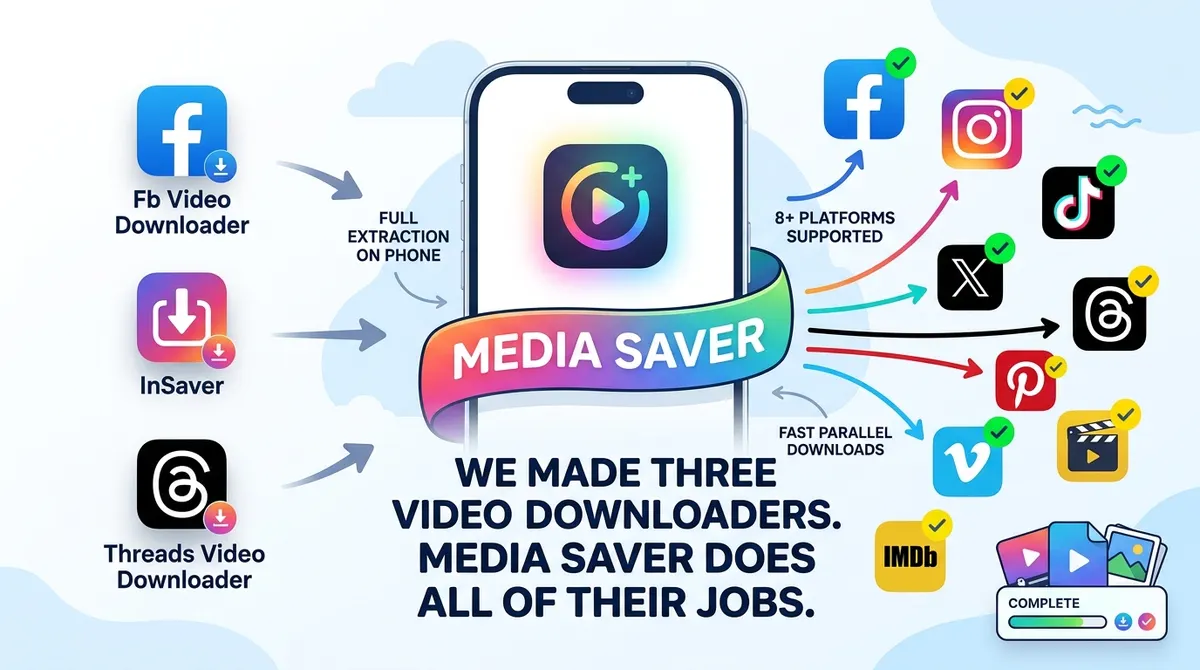
It is the successor to our single-platform downloaders, built to bring every platform into one app.
Paste a link, pick a quality
- Copy a post's link, paste it on Home and tap Download, or share it straight to Media Saver from the app you are in.
- Turn on Auto-Clipboard and Media Saver pastes a copied link and fetches its formats as soon as you come back.
- The quality sheet lists every quality the post comes in, from 4K down to a data saver, each with its size, and the sound on its own as an M4A.
- Posts with several photos get a card for each, so you can save one, a few or all of them.
Stories, highlights and posts
Open a platform from Home and sign in once on its own page. Then search for someone to see their stories, highlights and posts, save one, or hold to select several and save them together.
A browser that finds the videos
Go to almost any page in the built-in browser and play the video: a badge beside the address bar counts the videos the page loaded, with their format, resolution and length. A streamed video is saved as one MP4. It has tabs, a history and incognito tabs that stay out of it.
Fast, and out of the way
- Fast Download Mode, on by default, fetches a file over 15 MB in four parts at once.
- Downloads keep going in the background. Pause, resume, filter and follow them on the Downloads page or in your notification shade.
- Choose the folder they are saved to, and whether the quality sheet lists every format or one of each resolution.
Your gallery
Everything you save is in the Gallery tab: play it, swipe through photos, like it, sort it, or group it by where it came from. Repost Details shows a post's caption and hashtags, and Copy Caption copies them for your own post.
Trending
A feed of popular videos to watch full screen, filtered to a topic if you like. Save one to your gallery while it plays, heart it for later, or copy its link.
Premium
Media Saver is free, with ads. Premium, weekly, monthly, yearly or a one-time lifetime unlock, removes the ads, uncaps the download speed and unlocks the highest qualities, up to 4K.
Video tutorials
There is a short video for each part of the app, from your first link to the settings, on the tutorial page, with every step written out.
Your files stay yours
There is no account, and your downloads never pass through our servers: they are saved on your phone, in a folder you choose. Media Saver is available in 17 languages.
Media Saver is for saving media you own or have permission to download. Please respect each platform's terms. It is not affiliated with, endorsed by or sponsored by any of the platforms it supports.

Screenshots
Media Saver in action
Reviews
What people say about Media Saver: Video Download
“Excellent app! It’s fast, easy to use, and makes downloading and saving media simple.”

Abu Kaiser
Verified Google Play user
“Awesome app.”

Habib Adnan
Verified Google Play user
Details
Media Saver at a glance
- Developer
- NewAgeDevs
- Category
- Downloaders
- Works on
- Android
- Price
- Free to download
- Downloads
- 5,000+
- Available on
- Google Play
- Package name
- com.newagedevs.mediasaver
Media Saver is an independent app made by NewAgeDevs. It is not affiliated with, endorsed by or sponsored by any of the platforms it saves media from, and their names and trademarks belong to their owners. Please save only content you own or have permission to download.
FAQ
Questions about Media Saver
Is Media Saver free?
Yes. Media Saver is free to download and use, with ads. Premium, as a weekly, monthly or yearly subscription or a one-time lifetime unlock, removes the ads, uncaps the download speed and unlocks the highest qualities, up to 4K.
Which platforms does Media Saver support?
Instagram, Facebook, TikTok, X (Twitter), Threads, Pinterest, Vimeo and IMDb, from a link. For other sites, open the page in the built-in browser and play the video: Media Saver finds the videos the page loads.
Are there video tutorials?
Yes. There are nine short videos, one for each part of the app, from your first link to the settings. Each runs for about a minute, and the tutorial page has every step written out under its video.
Can I download videos in 4K?
Yes, with Premium, when the original video is 4K. The quality sheet marks the best quality BEST and the premium ones PRO, and lists the lower qualities with their sizes.
How do I save Instagram stories and highlights?
On Home, tap Instagram and log in once on Instagram’s own page. Search for someone, then tap Download on a story, or press and hold to select several. Highlights are on the same page.
Can I save just the audio?
Yes. The quality sheet has an Audio row that saves the soundtrack alone, as an M4A file.
Can I download from sites that are not on the list?
Often, yes. Open the page in the Browser tab and start the video. Once the page loads it, a badge beside the address bar counts the videos found; tap it to save one. A streamed video is saved as one MP4.
What is Fast Download Mode?
It fetches a file in several parts at once so it finishes sooner: a file over 15 MB comes down in four parts. It is on by default, and you can turn it off in the Menu tab.
Where are my downloads saved?
In your phone’s shared storage, so they appear in your gallery: videos in Movies/MediaSaver, photos in Pictures/MediaSaver and audio in Music/MediaSaver, unless you choose another folder in Menu › Download Folder. Everything is also in the app’s Gallery tab.
Can I send links to Media Saver from other apps?
Yes. Share a post to Media Saver from any app and it opens on the quality list. Or just copy the link: with Auto-Clipboard on, Media Saver pastes it and fetches its formats when you open it.
Do my downloads go through your servers?
No. Your files are saved on your device and never pass through our servers, and you don’t need a Media Saver account.
Why do I need to log in to Instagram or Facebook?
Only for stories and posts that need you signed in. You log in on the platform’s own page inside the app, and we never see your password.
The download badge does not appear in the browser. What now?
Start the video playing: the badge appears once the page has loaded it. If the post is private, sign in first. Platforms change their pages often, so if a link stops working, update the app.
Can I repost what I download?
Only if you made it or have the owner’s permission. Repost Details in the gallery shows the post’s caption and hashtags so you can credit the creator.
How do I remove ads?
Tap the crown at the top of the app and choose a Premium plan. Premium removes the ads and unlocks the highest qualities.
Is the Lifetime purchase really one-time?
Yes. Lifetime is a single payment made through Google Play. It never turns into a subscription, and it can be restored on any device signed in to the same Google account.
How do refunds work?
Purchases are processed by Google Play, so refunds follow Google Play’s refund policy. You can also contact us through Feedback and, where appropriate, we can issue a refund from the Play Console.
Is Media Saver affiliated with these platforms?
No. Media Saver is an independent app and is not affiliated with, endorsed by or sponsored by any of the platforms it supports. All trademarks belong to their owners.
Is Media Saver actively maintained?
Yes. Media Saver is the successor to our earlier single-platform downloaders, and gets regular updates: bug fixes, faster downloads and new platforms.
Still stuck?
Send us a message and we will get back to you. We read every one.
The story behind Media Saver
Keep exploring
More downloaders from us



Get Media Saver
Download & save HD videos, photos, reels & stories from all your favorite apps