Nine short videos, one for each part of Gesture Volume, in the order they build on each other. Each runs for about a minute with captions on screen, and every step is written out under it.
The first two use the Simple style, a round button on the edge of the screen. From the third on they use Advanced mode, which adds the Dock, the Quick slider, the Deck and the long-press menu. You can switch between the two at any time.
Getting started
Set it up and give it the one permission it needs.

- Open Gesture Volume. The first time you open it, a short tour shows how the bar works, one page at a time.
- Pick a style. Simple puts a round button on the edge for volume. Advanced adds the Dock, the Quick slider, the Deck and a long-press menu. You can switch any time.
- Learn the moves. The next pages play each gesture out: swipe for volume, tap for the volume panel, hold to move it.
- Allow the bar on screen. Tap Allow, switch on Allow display over other apps, and come back. That one switch lets the bar sit on top of your apps.
- Notifications, if you like. Optional: allow notifications and the bar's controls wait in your notification shade, even with the app closed.
- Turn on the service. Tap Service inactive to switch the bar on. Go home, and the round button is waiting on the edge.
Volume with a swipe
The round button: swipe it, tap it, move it.
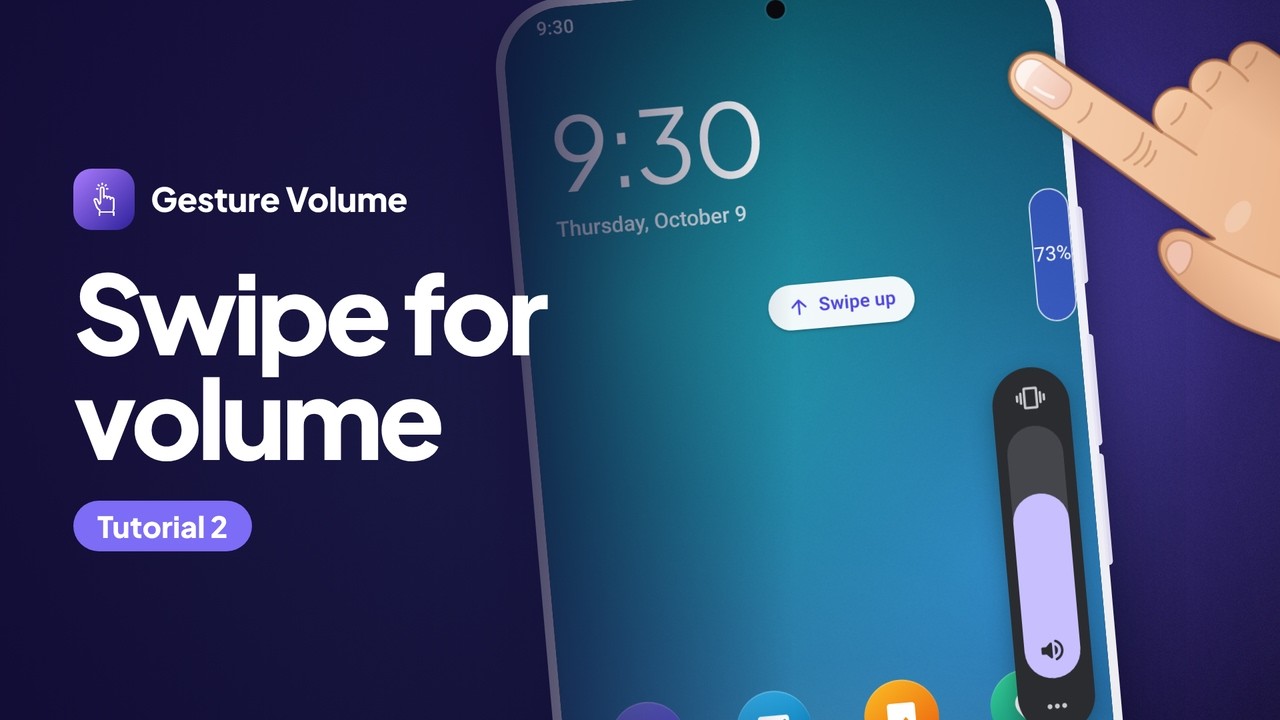
- Meet the round button. In the Simple style, a small round button sits on the edge of your screen, on top of every app.
- Swipe up on it. Each bit you swipe turns the volume up a step. The level shows on the button, and Android's volume slider comes up beside it.
- Swipe down to turn it down. Swipe the other way and it steps back down just as quickly.
- Tap it for the volume slider. A tap brings up Android's own volume slider, ready to drag.
- Hold it to pick it up. Keep your finger on it until it dims and shows arrows. The long-press menu opens too, and steps aside as soon as you move.
- Drag it anywhere, then let go. Up or down the edge, or across to the other side. Let go and it settles on the nearer edge.
The Quick slider
A volume and brightness track that follows your finger.

- Turn on Advanced mode. The Quick slider comes with the Dock bar. Open Gesture Volume, switch on Advanced mode and confirm.
- Meet the Dock. Back on your home screen, the round button is now the Dock: a slim tab on the edge.
- Swipe the tab up or down. It grows into the Quick slider, and every bit you swipe moves the level one step.
- Touch the track to set it. Touch anywhere on the open track: the level jumps to your finger and follows it. Let go and it tucks back in.
- Or press a volume key. With Volume keys on Instant, a key opens the slider on the spot and moves it one step per press. Instant needs the optional accessibility service.
- Open its settings. In Gesture Volume, under Advanced features, tap Quick slider. The preview runs your slider as it is.
- Pick a fill. Open Animation and choose a fill. Shaders and Surge are live effects; the preview at the top runs each one.
- Celebrate at the top. With Celebrate at the top on, a flourish plays when the level reaches 100%. Pick the one you like.
- Choose what it adjusts. Under Content, pick Brightness or one volume. Adaptive follows whatever is playing: a call, an alarm, or media.
The Deck
Your apps, people and tools, one swipe in from the bar.

- Swipe in from the tab. Swipe from the Dock toward the middle of the screen. Out slides the Deck: your people, your apps and your tools.
- Tap a tile. Some tiles act at once. Flashlight switches the torch on, and its tile lights up.
- Or open a card. Others open a card beside the strip. Volume has sliders for media, ringtone and alarm.
- Start a timer. Tap Timer, pick a length and Start. It keeps counting after the Deck closes.
- Close it. Tap anywhere outside, or press Back. Left alone, it closes itself after 10 seconds.
- Open the Deck settings. In Gesture Volume, under Advanced features, tap Deck.
- Turn tiles on or off. Tap Deck tiles and switch on the ones you want. Coin toss and Dice start off; Screenshot can go.
- Add people to call. Back on the Deck screen, Quick dial puts people in the strip: one tap calls them or opens a message.
- Toss a coin. Coin toss now waits at the end of the strip: scroll down to it, tap it, then tap the coin.
Search in the Deck
Apps, quick-dial people, sums and the web, as you type.
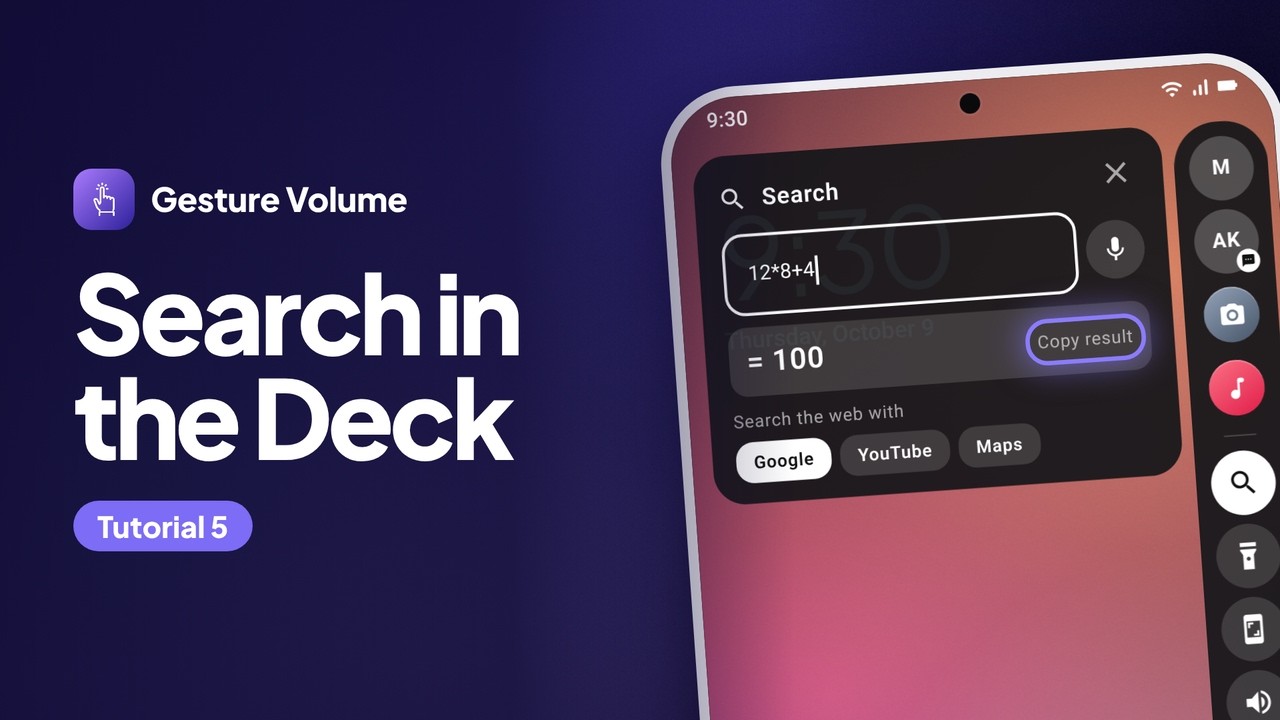
- Open the Deck, tap Search. Swipe in from the tab, then tap Search. The keyboard comes up, ready for you to type.
- Work out a sum. Type a sum and the answer appears as you type. Tap Copy result to copy it.
- Find an app. Type part of an app's name and it shows up. One tap opens it.
- Find someone. Your quick-dial people show up too, ready to call or message.
- Call a number. Type a phone number and one tap opens the dialer with it.
- Search the web. Anything else goes to the web. Pick a provider, or press Search on the keyboard for your default.
- Close it. Tap anywhere outside, or press Back. The Deck slides away and the tab comes back.
The long-press menu
Hold the bar for the actions you use most.

- Hold the tab. Keep your finger on the Dock until the ring closes. The menu opens beside it, and stays when you let go.
- Tap an action. Each tile runs its action and the menu closes. In the video, the flashlight comes on.
- Hold and drag to move it. Hold, then move instead of letting go: the menu steps aside and the bar follows your finger.
- Open its settings. In Gesture Volume, under Advanced features, tap Long-press menu. The preview shows the menu as it is.
- Choose the actions. Open Items: remove what you never use, and add what you want from Available. The video puts Screenshot in place of Stop service.
- Pick a panel style. Under Colours, choose how it is drawn. Glass blurs what is behind it; the Deck and the Quick slider use the same style.
- Choose how it opens. Under Animation, pick an opening animation. The preview plays it each time you pick one.
- Hold the tab again. Your actions, in the style and animation you picked.
Choose what each gesture does
Taps, holds and swipes, for every app or just one.

- Open Actions. In Gesture Volume, tap Actions. Every tap, hold and swipe the bar understands is listed here.
- Try a gesture on the pad. The pad at the top holds your real bar. Try a gesture on it, and the line below says what that gesture does.
- Pick a gesture to change. Tap a gesture to change it. Double tap does nothing yet, so give it a job.
- Choose an action. Actions come in groups: the bar, volume, the Deck, your device, media and system. Tap one and you are done. The system actions, such as lock screen and screenshot, use the optional accessibility service, and the picker marks them.
- Give an app its own gestures. Under More, open Gestures for chosen apps, tap Add and pick the app.
- Change a gesture just there. Set Swipe up to Increase brightness. In that app, swiping up now brightens the screen; everywhere else it works as before.
Make the bar yours
Presets, size, shape, colour and where it sits.

- Open Appearance. In Gesture Volume, tap Appearance. The preview at the top shows the bar on a phone.
- Start from a preset. Quick presets set the whole look at once: Classic, Dock, Edge and Bold.
- Size and shape. Open Size & shape and drag Width and Height. Rounded or Tab sets how the ends look.
- Pick a colour. Under Colours, tap Fill and choose a colour. The preview takes it straight away.
- Choose a side. Under Position, put it on the left or the right, and set how far down the edge it sits.
- Save it. Tap Save. Go home, and your bar is on the edge just as you made it.
Keep it out of the way
Hide the bar in some apps, while you type, or until media plays.

- Open Visibility. In Gesture Volume, under Advanced features, tap Visibility.
- Choose when it shows. Two switches: only while media plays, or only during calls. Leave both off and it is always there.
- Pick what happens as you type. Move above the keyboard, hide, or stay put. Moving, it can glide, spring or bounce out of the way.
- Type in another app. In any app, as the keyboard comes up the bar springs above it, and goes back when you are done.
- Pick apps to hide it in. Back in Visibility, tick the apps where it should step aside, such as a video player. Noticing which app is open uses the optional accessibility service.
- There, it steps aside. Open that app and the bar is gone. Leave it, and the bar is back.
- Show it on the lock screen. Turn on Show on the lock screen and the bar is there too, for volume and quick toggles. This also uses the accessibility service.
Still stuck?
The questions on the product page cover what people ask most, from a bar that keeps disappearing to which volume a swipe changes. In the app, Troubleshoot checks the battery settings that stop the bar on some phones and takes you to the right screen. Or write to us with the form on the product page.