Mobile · Tools
Gesture Volume: Edge Bar
Volume, brightness and a deck of tools, from one bar on your screen edge.
A slim bar on the edge of your screen. Swipe it for volume or brightness, pull it inward for the Deck of apps and tools, and hold it for a menu of your own, without touching the volume buttons.
10,000+
Downloads
211
Ratings
4
Out of 5
Highlights
What Gesture Volume: Edge Bar does
The Quick slider, with animated fills in your colours
The Deck: apps, quick dial, search and tools
Over forty actions for taps, holds and swipes
A long-press menu you fill yourself
Presets, then size, shape, colour and icon
Hidden in chosen apps or while you type
Available in 15 languages
How it works
How to control volume without the volume buttons on Android
-
Allow the overlay
Install Gesture Volume and grant Display over other apps, the one permission it requires to draw the bar.
-
Turn the service on
Switch the service on with the big switch at the top of the home screen. Press Home and the bar appears on the edge of your screen; it hides while the app itself is open.
-
Swipe to change the volume
Swipe the bar up or down. It follows what is playing (a call, an alarm, a ringtone or your music), and Actions › Volume stream pins it to one stream if you prefer.
-
Add brightness and actions
Grant Modify system settings from the Permissions card to control brightness, then choose what each tap and swipe does under Actions. Lock screen and screenshot use the optional accessibility service.
-
Put it where it suits you
Press and hold the bar, wait for the buzz and drag it anywhere. Appearance sets its size, colour and opacity.
About
What is Gesture Volume?
Gesture Volume: Edge Bar is a free Android app that puts a slim bar on the edge of your screen. Swipe it for volume or brightness, tap it for any action you like, or pull it inward for the Deck, a panel of your apps and tools. It began as a way to save a worn-out volume rocker, and it still is one.
The bar
- Swipe up and down for volume or brightness. It follows what is playing: a call, an alarm, a ringtone or your music.
- Drag it anywhere, and it snaps to the edge if you like. When you turn your phone it stays on the same edge, and lies along the top or bottom in landscape.
- Start from a preset (Classic, Dock, Edge or Bold), then make the size, shape, colour, opacity, icon and edge distance your own.
The Quick slider
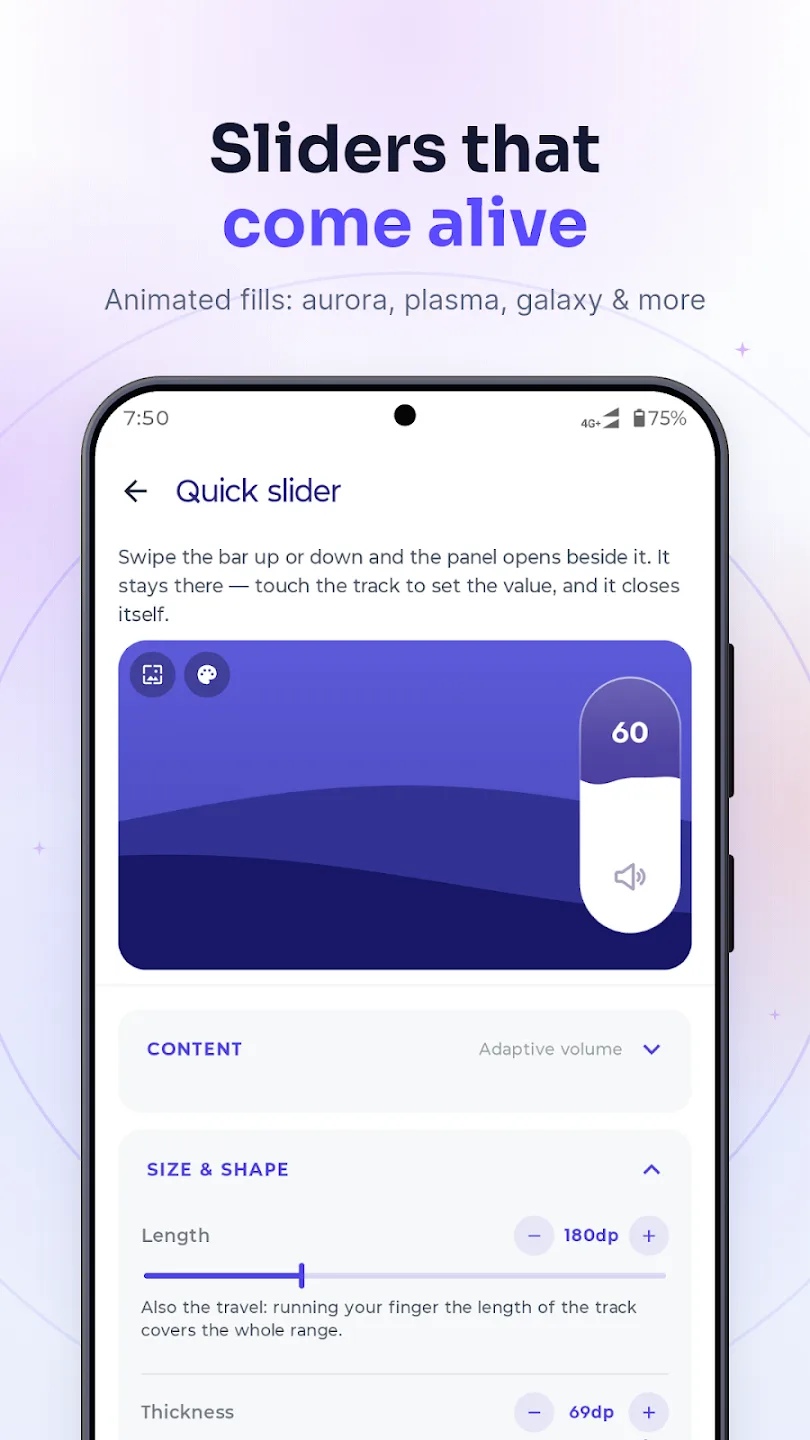
A full-height track that grows out of the bar. Set the level in one move, and it tucks itself away again.
- Adaptive volume (the call's volume in a call, otherwise whatever is playing), or media, ring or alarm volume, or brightness
- Animated fills such as waves, aurora, plasma and galaxy, in your own colours, with a flourish at 100% if you like
- Opens straight from the volume keys if you want
Gestures and the long-press menu
Single, double and triple tap, long press, and swipes up, down, in and out, with over forty actions to put on any of them, plus a long-press menu you fill yourself. An app can have gestures of its own: in a video player, swiping up could set the brightness instead.
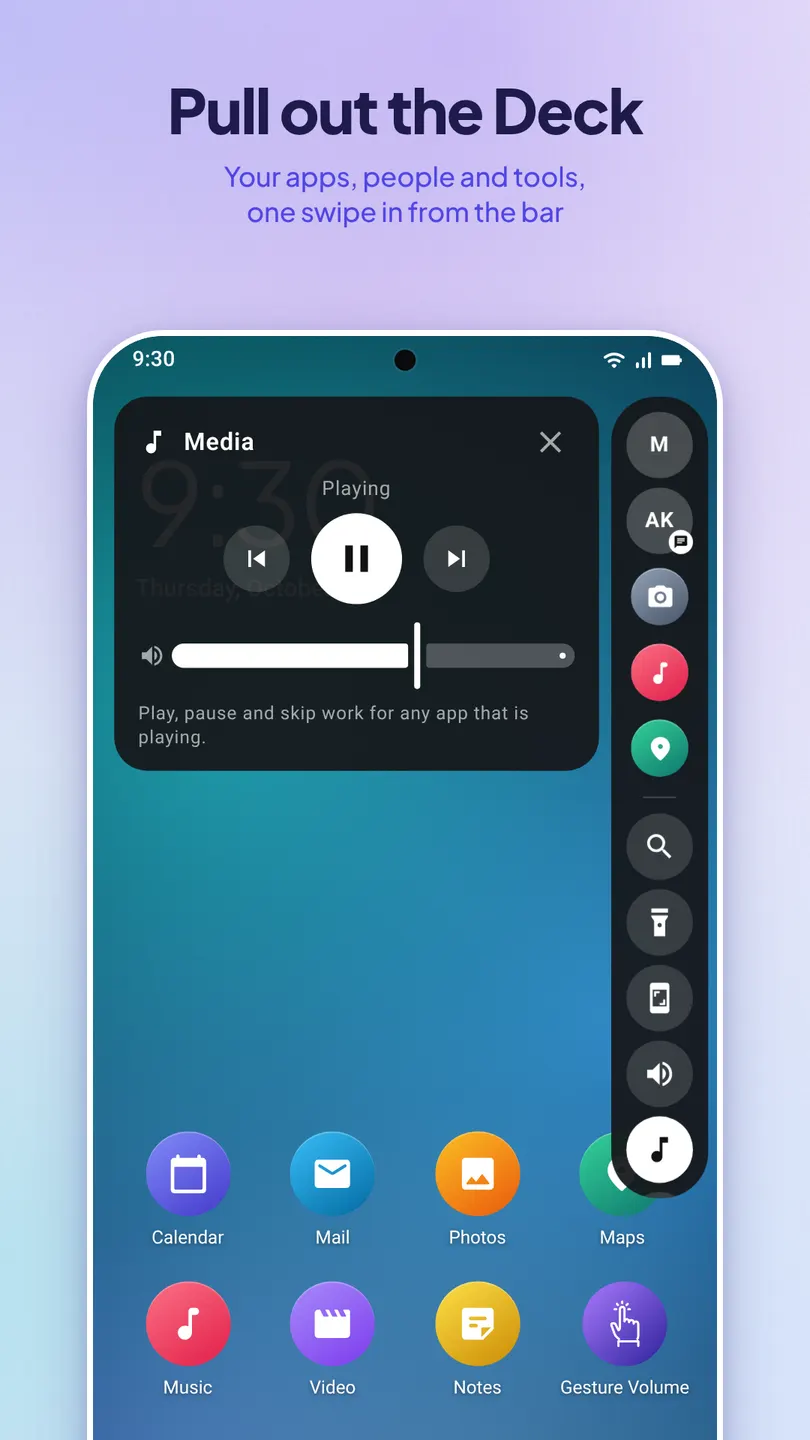
The Deck
- Pinned apps, and quick-dial contacts that call, text or open a WhatsApp or Telegram chat
- Search for apps, quick-dial people, sums, numbers to call or text, and the web, with voice search
- Volume, brightness and media controls
- Timer, calculator, coin toss, notes and a checklist
- QR scanner, screenshot, lock, flashlight, Wi-Fi and Bluetooth
Out of the way when you want
- Hide the bar in apps you choose
- Show it only while media plays or during calls
- Lift it above the keyboard, or hide it while you type
- A Quick Settings tile hides or shows it
Permissions and privacy
The one permission it requires is Display over other apps. The accessibility service, Notifications, Modify system settings, Do Not Disturb access and Phone are asked for only when you use a feature that needs them.
The accessibility service is optional and off until you turn it on in Settings › Accessibility, and the app shows you what it is for first. It is used only for what you switch on: system actions such as lock screen and screenshot, the instant volume keys, hiding the bar in apps you chose, and the bar on the lock screen. It cannot read your screen, and nothing it sees leaves your phone.
There is no account and no analytics, and your settings, notes and checklist stay on your phone. The free version shows ads from AppLovin and partners; Pro, a one-time purchase, removes them.
Video tutorials
There is a short video for each part of the app, from setting it up to keeping the bar out of the way, on the tutorial page, with every step written out.
Open source
Gesture Volume is open source. The code is on GitHub, where bug reports, feature requests and pull requests are welcome. It is available in 15 languages.
Icons from SVGRepo; Lottie animation by S M Rony.

Screenshots
Gesture Volume in action
Reviews
What people say about Gesture Volume: Edge Bar
“Keeps my phone usable despite a dysfunctional volume button. The most intuitive and most customizable one from the several apps I have tried so far for this purpose. Thanks to the developer for the latest update, which has made the user experience top class. Highly recommended.”

J S
Verified Google Play user
“Godsend. My volume button fell off and this is an awesome replacement. Thanks!”

Ruby
Verified Google Play user
“Magic. I’m sensitive to sound and need to adjust volume frequently. This is a whole lot easier than fiddling with buttons, which are clumsy and prone to wear and tear.”

George Farmer
Verified Google Play user
“When you said you’d add a button to disable the slider, I thought it was just a generic comment. Many developers say this and then do nothing. But you actually kept your word, and I realised I chose the right developer. Pumping this up to 5 stars!”

Prabir Paul
Verified Google Play user
“It’s very good: premium design, customisable. I can adjust my volume even though the buttons are broken.”

Ayanansu Kuila
Verified Google Play user
“Very good app. Works even when I close the app. Would recommend if your volume buttons aren’t working.”

Anirudh Sathish
Verified Google Play user
Details
Gesture Volume at a glance
- Developer
- NewAgeDevs
- Category
- Tools
- Works on
- Android
- Price
- Free to download
- Downloads
- 10,000+
- Rating
- 4 out of 5 · 211 ratings
- Available on
- GitHub, Google Play
- Package name
- com.newagedevs.gesturevolume
FAQ
Questions about Gesture Volume
Can I use Gesture Volume if my volume buttons are broken?
Yes. It began as a way to save a worn-out volume rocker. Swipe the bar on the edge of the screen to change the volume, without pressing the physical buttons at all.
Are there video tutorials?
Yes. There are nine short videos, one for each part of the app, from setting it up to hiding the bar in chosen apps. Each runs for about a minute, and the tutorial page has every step written out under its video. They are on our YouTube channel too.
Does Gesture Volume need root?
It does not ask for root. The only permission it requires is Display over other apps. The accessibility service, Notifications, Modify system settings, Do Not Disturb access and Phone are asked for only when you use a feature that needs them.
Can I lock the screen or take a screenshot without the buttons?
Yes. Assign Lock screen or Screenshot to a tap, a swipe or the long-press menu. Both use the optional accessibility service, which stays off until you turn it on in Settings › Accessibility.
Can I hide the bar automatically in certain apps?
Yes. Choose the apps where the bar should hide, and it gets out of the way when they are open; the optional accessibility service is what notices which app is open. A Quick Settings tile also hides or shows the bar.
Is Gesture Volume free?
Yes. The free version shows ads from AppLovin and partners, and Pro, a one-time purchase, removes them.
Is the source code available?
Yes. The source code is on GitHub, where bug reports and feature requests are welcome.
Where is the bar? I do not see it.
It is hidden while this app is open, so it never covers its own settings. Press home and it comes back. If it is still missing, check that the service is on — the big switch at the top of the home screen — and that the Permissions card is not asking for anything.
How do I move the bar?
Press and hold it, wait for the buzz, then drag. It goes anywhere on the screen, and where you leave it is remembered separately for portrait and landscape. Which side it starts on can also be set under Appearance › Position.
How do I get rid of the bar temporarily?
Long press it and choose Hide handler. It stays away until you bring it back — from the notification, or from the card that appears on this app's home screen. Turning the service off entirely is the switch at the top of that screen.
The bar keeps disappearing on its own.
Your phone is stopping the app in the background. This is common on Xiaomi, Oppo, Vivo, Realme, Huawei and some Samsung devices, and it is not something an app can fix from the inside — battery optimisation has to be turned off for this app, and on some phones it also needs to be allowed to auto-start. Troubleshoot checks both and takes you to the right screen for your device.
Why can I change the volume but not the brightness?
Brightness needs the “Modify system settings” permission, which Android keeps separate from everything else. Grant it from the Permissions card. The app also turns adaptive brightness off the first time it writes a brightness value, because the light sensor would otherwise overwrite whatever you set within a second or two.
Why does it ask for the accessibility service?
Only for the actions Android will not let an ordinary app perform: Back, Home, Recents, screenshot, lock screen, the notification shade and the power menu. Nothing else needs it, and the picker marks those actions so you know before you choose one. It is also used, only if you turn them on, for the Instant volume keys, hiding the bar in chosen apps, and showing the bar on the lock screen.
Can I get rid of the ongoing notification?
Mostly. Turn off “Notification controls” in Actions. Android requires a notification while the bar's service runs, so a silent placeholder stays, but it loses its status bar icon and moves to the bottom of the shade. You can hide it completely from the app's notification settings.
What is the Quick panel?
A track that grows out of the bar for setting brightness or volume. Swipe the bar up or down and it opens beside it, and the same swipe keeps setting the value. It stays on screen afterwards, so you can touch the track to correct an overshoot, and it closes itself once you are done. What it adjusts is set in Quick slider.
What is the Deck?
A panel that slides out beside the bar with your apps, shortcuts and small tools — search, a timer, a calculator, notes and media controls. Swipe the bar inward to open it, or assign “Open deck” to any other gesture.
What is the difference between the Quick panel and the Deck?
The Quick panel is one slider for one value. The Deck is a whole panel of shortcuts and tools. They open on different gestures — up or down for the panel, inward for the Deck — so they cannot be confused with each other.
How do I change what a tap or a swipe does?
Actions. There are six slots — single tap, double tap, triple tap, long press, swipe in and swipe out — plus the two vertical swipes, and around forty actions to put in them. A slot set to None does nothing, which also makes the gestures around it quicker: a single tap fires immediately when nothing is bound to a double tap.
What is the long-press menu?
Holding the bar offers a small menu of actions as well as picking the bar up to move it — hold still for the menu, move to drag. You choose what is in it, what order it is in, and whether it is a grid or a list, from Long-press menu.
It changes the wrong volume.
By default the bar follows whatever is playing — media, a call, an alarm or the ringer — which is usually what you want but can surprise you when nothing is playing. Actions › Volume stream lets you pin it to one specific stream instead.
Does it work in landscape?
Yes, and the bar remembers a separate position for each orientation, so it can sit somewhere sensible in both.
Does it drain the battery?
Very little. The bar is a small window that draws nothing until you touch it, and the app does no work in the background between gestures. Turning off battery optimisation, which Troubleshoot suggests, does not make it use more power — it only stops the system killing it.
The bar gets in the way in games and full-screen video.
Move it somewhere the app you are using does not need — long press and drag — or make it smaller and more transparent under Appearance. For a game you play often, hiding the bar from the long-press menu and bringing it back from the notification afterwards is the cleanest option.
Still stuck?
Send us a message and we will get back to you. We read every one.
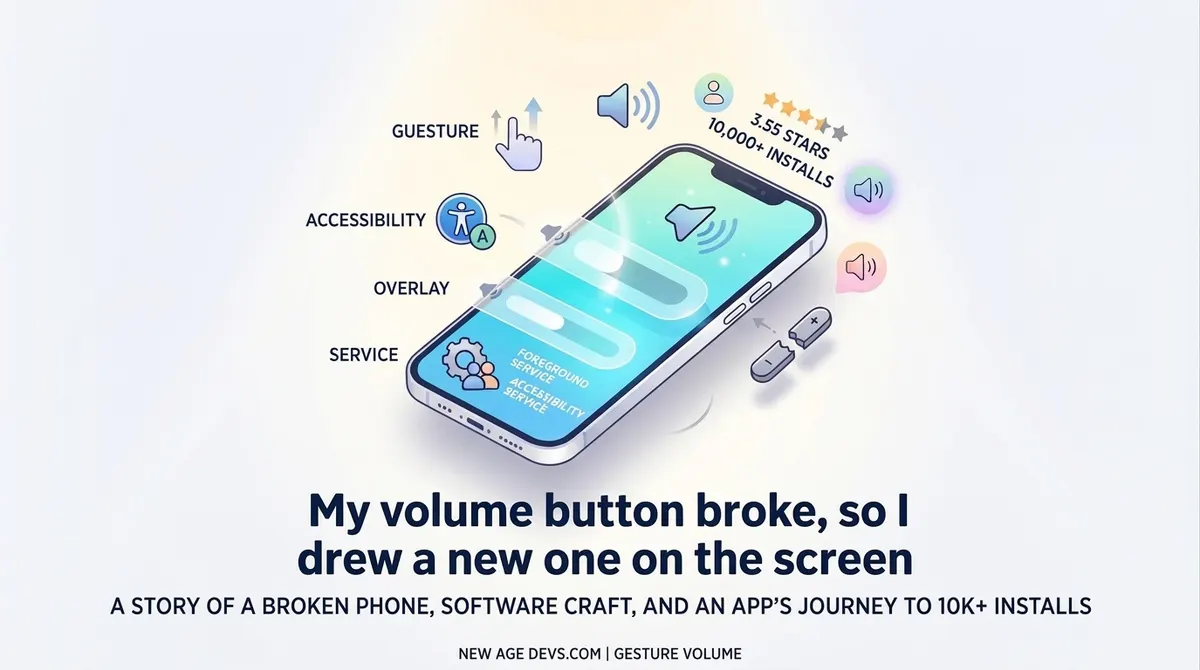
The story behind Gesture Volume
Keep exploring
More from us


Get Gesture Volume
Volume, brightness and a deck of tools, from one bar on your screen edge.