Ten short videos, one for each part of Sonary: a tour of the app, the AI tools, and the everyday editing tools. Each runs for a minute or so with captions, and every step is written out under it.
The AI tools work in one of two ways. Offline AI runs on your phone for free; Cloud AI runs in the cloud and uses AI minutes, and Sonary asks before it uploads anything. All ten videos are also on YouTube as one playlist, Sonary Tutorials.
Getting started
A quick tour: the first launch, Home, the demos, and where your files go.

- Pick a goal. The first time you open Sonary, it asks what you'd like to do first. Pick a goal to jump straight to the right tool, or tap Just exploring.
- Home. Home leads with the two headline AI tools, Noise Removal and Vocal Separator. Swipe the row below them for more: Studio Voice, Stem Splitter, Subtitles and AI Voiceover.
- Utilities. Below the AI tools sit the everyday ones: extract, convert, trim, split, merge and more.
- Hear a demo. Further down are demos of what the AI can do. Open one to hear a recording before and after, then tap Try it with your own audio to open the tool.
- Tools. The Tools tab lists every tool in one place.
- Library. Everything you save lands in the Library, grouped by tool, with filters across the top. Tap the menu on any file to play, rename, share or delete it.
- Settings. Settings shows your AI minutes. Offline AI runs on your phone for free; Cloud AI uses minutes.
Noise Removal
Clean up a noisy voice memo, interview or podcast.

- Open Noise Removal. On Home, tap Noise Removal.
- Choose your recording. Tap Choose, then Device files, and pick the recording you want to clean. Press play to hear it first.
- Pick Offline AI. Under Quality, choose Offline AI: it runs on your phone, free and private. Cloud AI uses minutes, for the toughest recordings.
- Remove the noise. Tap Remove noise. A short clip takes just a few seconds.
- Compare. The result keeps both tracks, the original (muted) and the cleaned version, so you can hear the difference.
- Save it. Tap Save mix to keep it, or a track's download button to save that track on its own. Every result also lands in your Library.
Vocal Separator
Split a song into vocals and music, for karaoke, practice or an a cappella.
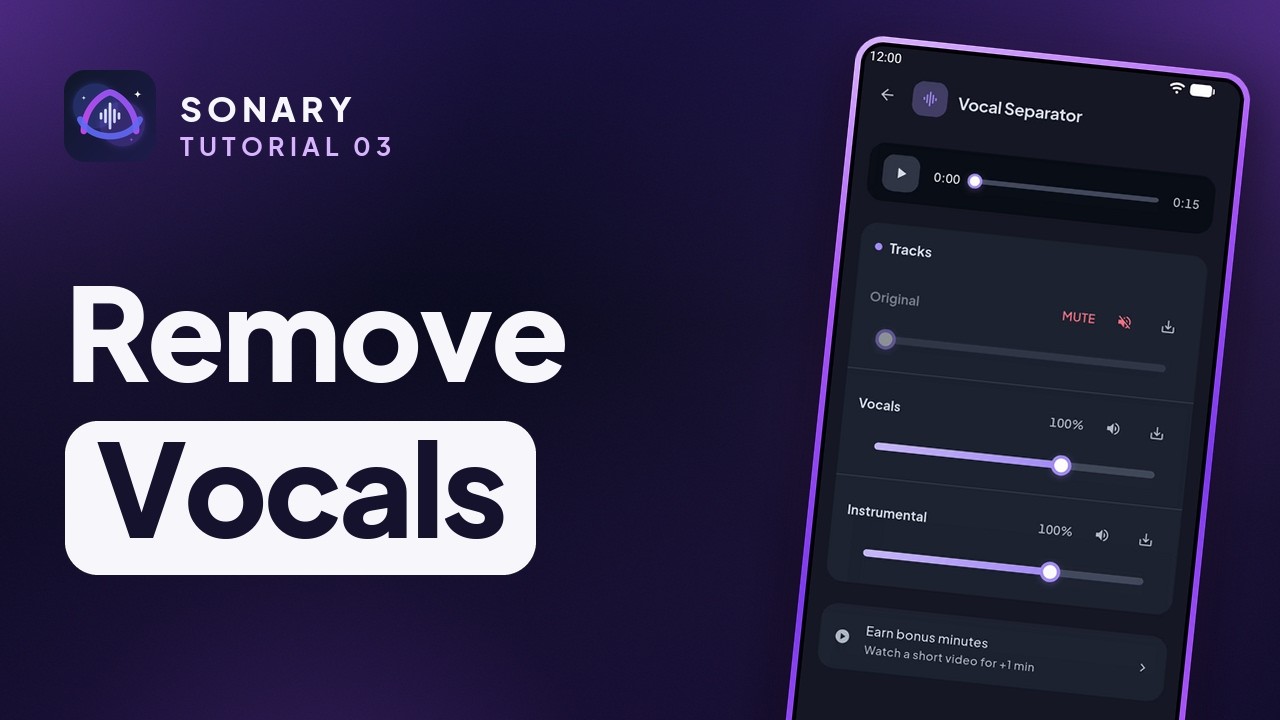
- Open Vocal Separator. On Home, tap Vocal Separator.
- Choose a song. Tap Choose, then Device files, and pick a song.
- Pick Offline AI. It separates the song right on your phone, for free.
- Tap Separate. The first time, Sonary asks to download its AI model, about 160 MB. It's a one-time download, and after that it works without internet.
- Three tracks. You get the original, the vocals and the instrumental, each with its own fader.
- Karaoke or a cappella. Mute the vocals for an instant karaoke track, or bring them back and mute the instrumental for an a cappella.
- Save it. Tap Save mix to keep what you hear, or save one track with its download button.
Studio Voice
Make a rough phone recording sound like it was made in a studio.
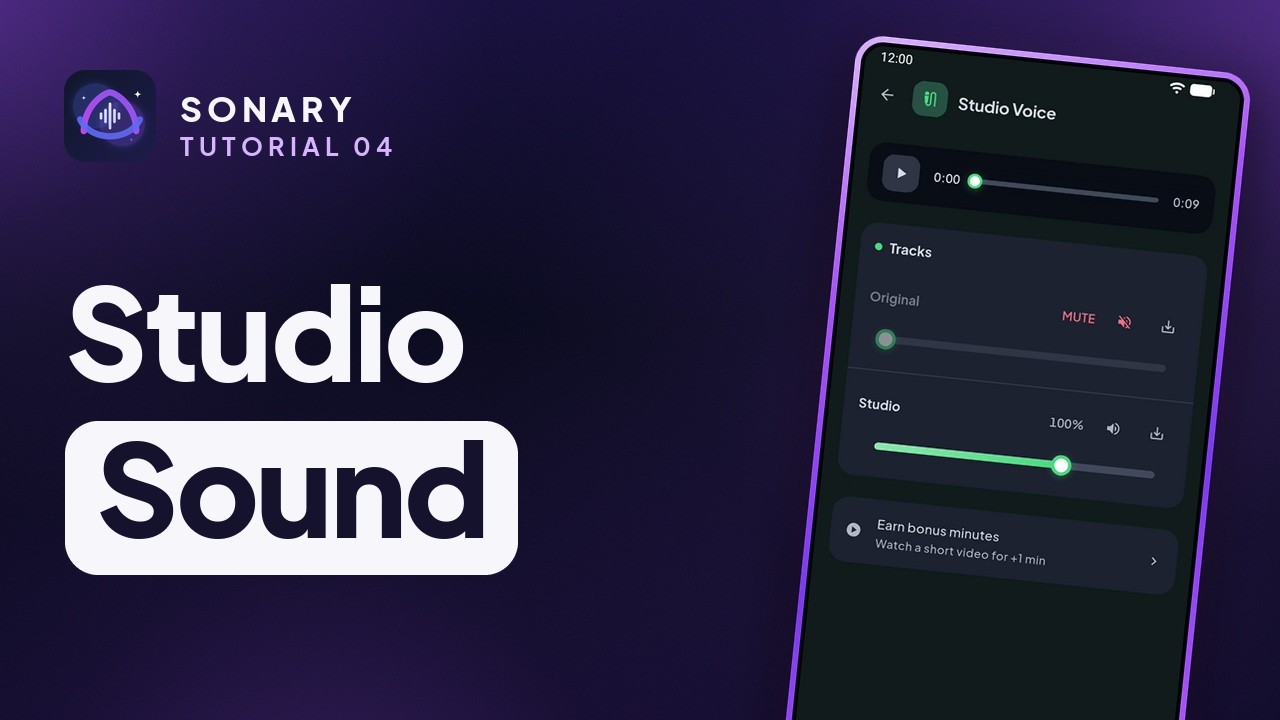
- Open Studio Voice. On Home, open Studio Voice from the row of AI tools.
- Choose a recording. Tap Choose, then Device files, and pick a recording, like a thin, echoey voice memo.
- Check the cost. Studio Voice runs in the cloud. A short clip uses the two-minute minimum.
- Enhance. Tap Enhance. The AI removes the noise and echo and restores a full, clear voice. It takes about a minute.
- Compare. The original is muted and the studio version is ready to hear.
- Save it. Save the mix, or download the studio track on its own.
Stem Splitter
Split a song into vocals, drums, bass and more.
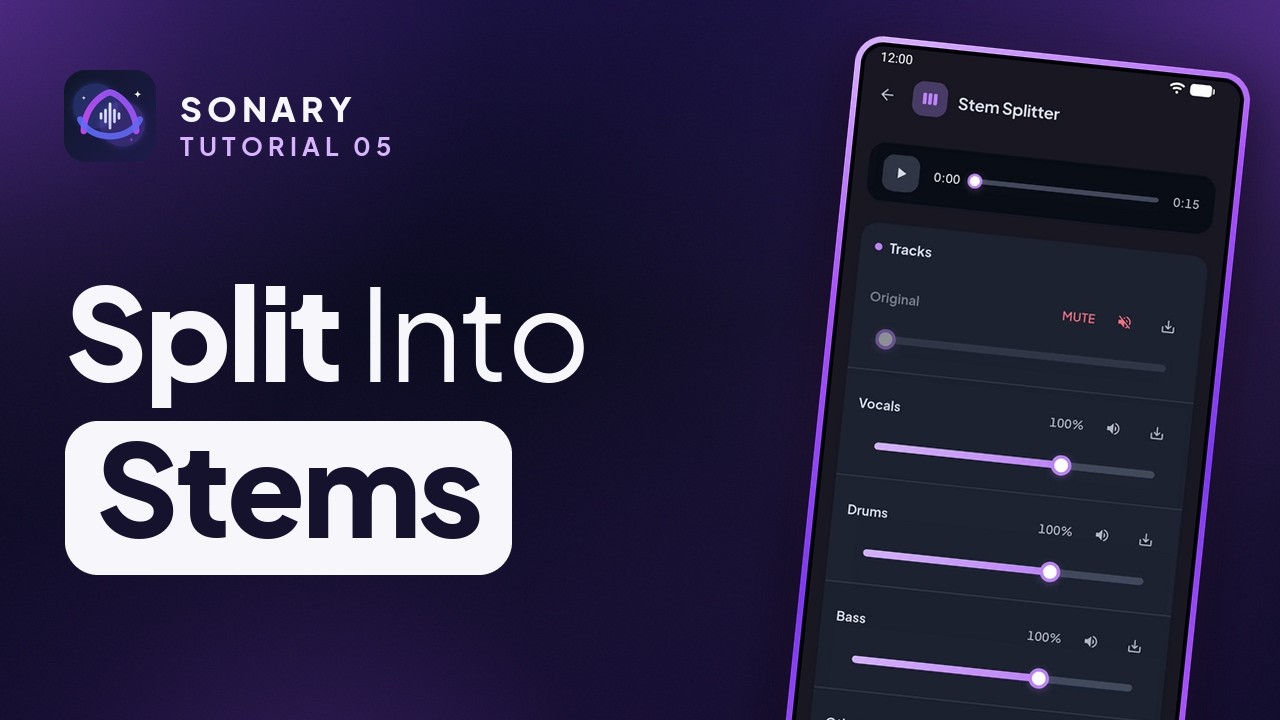
- Open Stem Splitter. On Home, open Stem Splitter from the AI tools.
- Choose a song. Tap Choose, then Device files, and pick a song.
- Four or six stems. Four stems gives you vocals, drums, bass and other. Six stems adds guitar and piano, in the cloud.
- Pick Offline AI. It splits the song on your phone, for free.
- Split. Tap Split. Each part of the song gets its own track and fader.
- Mix it your way. Play them all together for the full song, or mute the vocals and the other instruments to hear just the drums and bass.
- Save a stem. Save any stem on its own, or save the mix you made.
Subtitles
Turn speech into a transcript and timed subtitles.

- Open Subtitles. On Home, open Subtitles from the row of AI tools.
- Choose a recording. Tap Choose, then Device files, and pick a recording or a video.
- Pick the language. Pick the spoken language, or leave it on Auto-detect. You can also translate it to English.
- Transcribe. Tap Transcribe. A short clip uses one AI minute.
- Allow Cloud AI once. The first time, Sonary asks before uploading your audio. Tap Allow & Continue.
- Your transcript. A few seconds later it's ready, with a timestamp on every line.
- Export. Tap Export for SRT subtitles for YouTube and video editors, web subtitles (VTT), or plain text.
AI Voiceover
Turn any text into natural-sounding speech.

- Open AI Voiceover. On Home, open AI Voiceover from the row of AI tools.
- Type your script. Tap the script box, then type or paste what the voice should say.
- Pick a voice. Pick a language, then a voice. Adjust the speed if you like. Premium voices sound even more natural, in English.
- Create it. Tap Create voiceover. A short script uses one AI minute.
- Allow Cloud AI once. The first time, Sonary asks before sending your text to Cloud AI. Tap Allow & Continue.
- Listen. A few seconds later your voiceover is ready. Press play.
- Save and share. Save it and drop it into your next video. When you share it, say it's AI-generated.
Extract audio from video
Pull the soundtrack out of any video, offline.

- Open Extract Audio. On Home, tap Extract Audio under Utilities.
- Choose a video. Tap Choose a video, pick one from your phone, and tap Done.
- Pick a format. MP3 plays everywhere; WAV and FLAC keep full quality.
- Extract. Tap Extract audio. It takes a moment, and works offline.
- Listen and share. It's already saved to your Library. Play it back, or tap Share to send it to another app or save a copy anywhere.
Trim, convert and merge
Three everyday tools, free and offline.
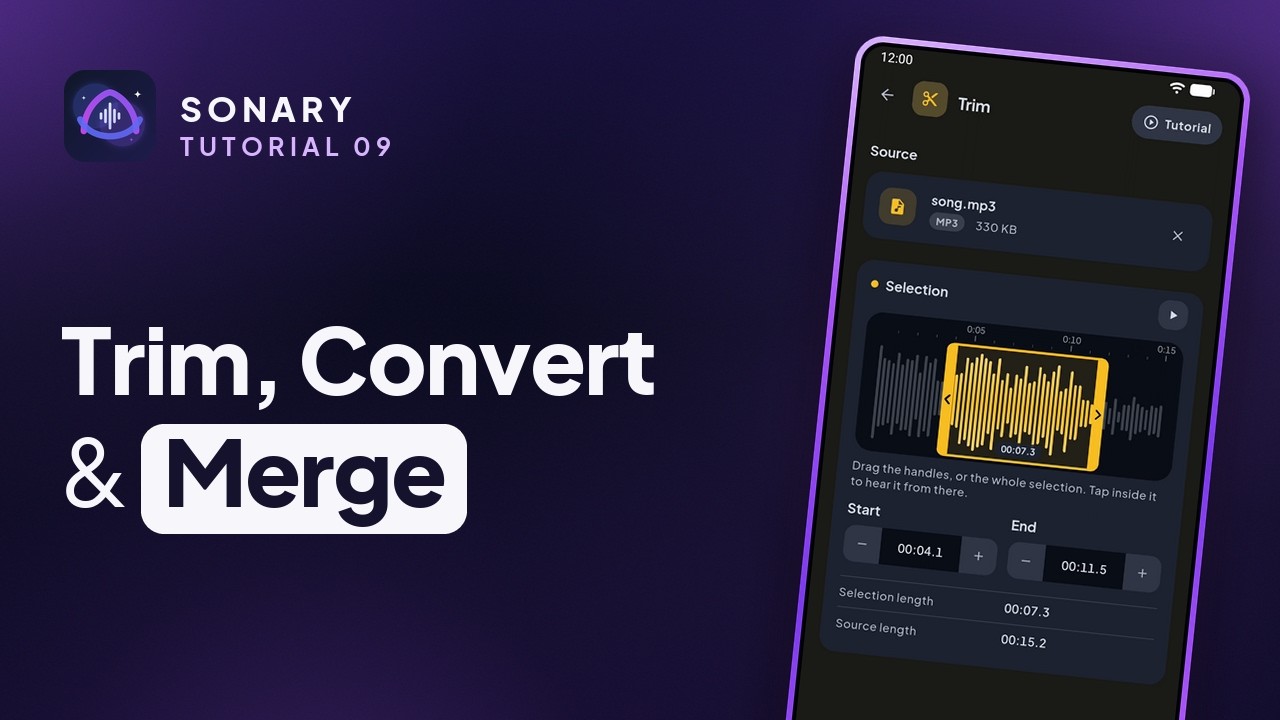
- Trim. Open Trim under Utilities on Home and choose the audio you want to cut. Drag the handles to keep just the part you want; plus and minus nudge each end by a tenth of a second. Preview the selection, then tap Trim selection, and the clip is saved to your Library.
- Convert. Open Convert and choose a file, like an M4A voice memo. Pick the format you need, like MP3, and tap Convert.
- Merge. Open Merge from the Tools tab and add your files; in the picker, long-press to select several at once. They join from top to bottom, so drag to reorder them, pick a format, and tap Merge.
Clone my voice
Type anything and hear it in your own voice. Part of Sonary Pro.
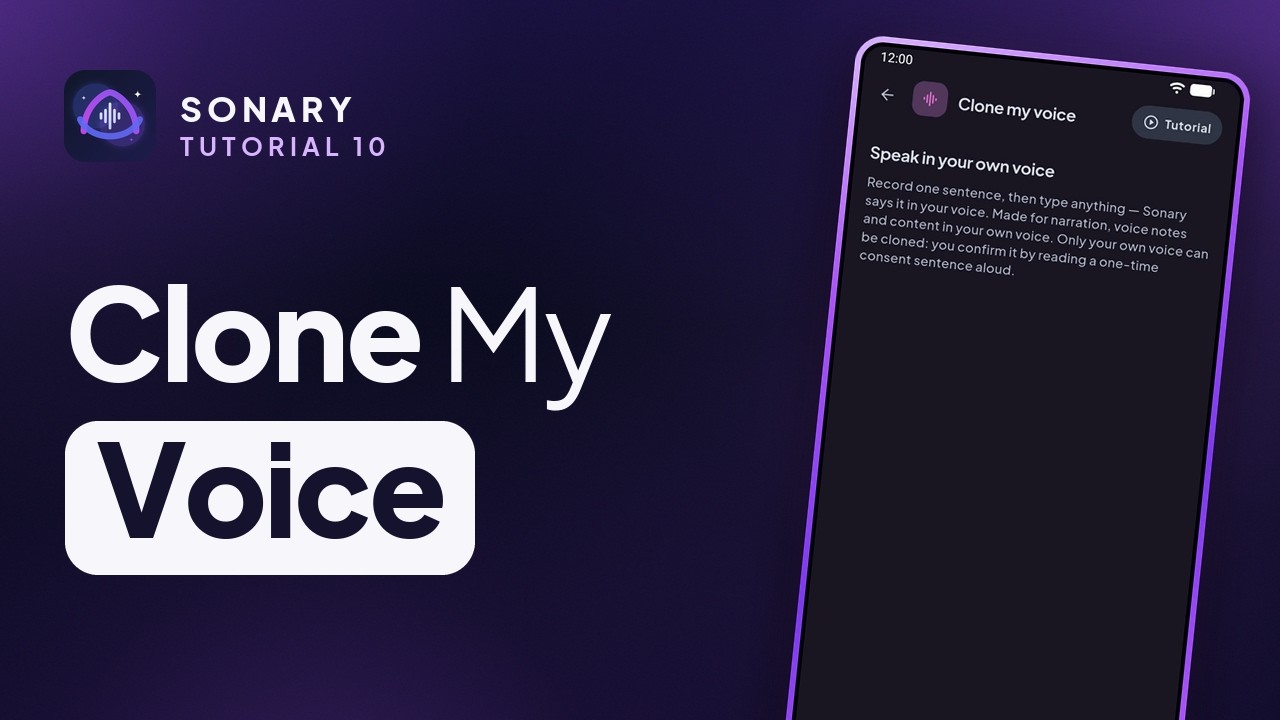
- Find it in Tools. Clone my voice is in the Tools tab, marked Pro. It's made for narration, voice notes and videos in your own voice.
- How it works. You record one short sentence. Then type any script, and Sonary reads it in your voice.
- Your voice only. Only your own voice can be cloned: you confirm it's you by reading a one-time consent sentence aloud.
- Unlock with Pro. Tap See Pro plans. Pro also removes ads and includes monthly AI minutes. Plans renew automatically until you cancel, and you can cancel anytime.